
Remote device configuration
For supported device models (currently Sentinel SNT-G1), Celestian can configure the device remotely, send commands, and show whether the device runs the configuration you want.
Prerequisites
Section titled “Prerequisites”- The device is registered with Serial = the device MAC (a sensor behind a gateway is a regular device).
- There is a valid delivery destination: a channel that is followed (subscribed) by the device itself or its gateway, with the gateway bridge forwarding
+/configand+/cmd. - You hold the
device.configurepermission on that device (Admin already has it; the built-in Operator role does not).
The Device settings tab
Section titled “The Device settings tab”On the device detail → Device settings:
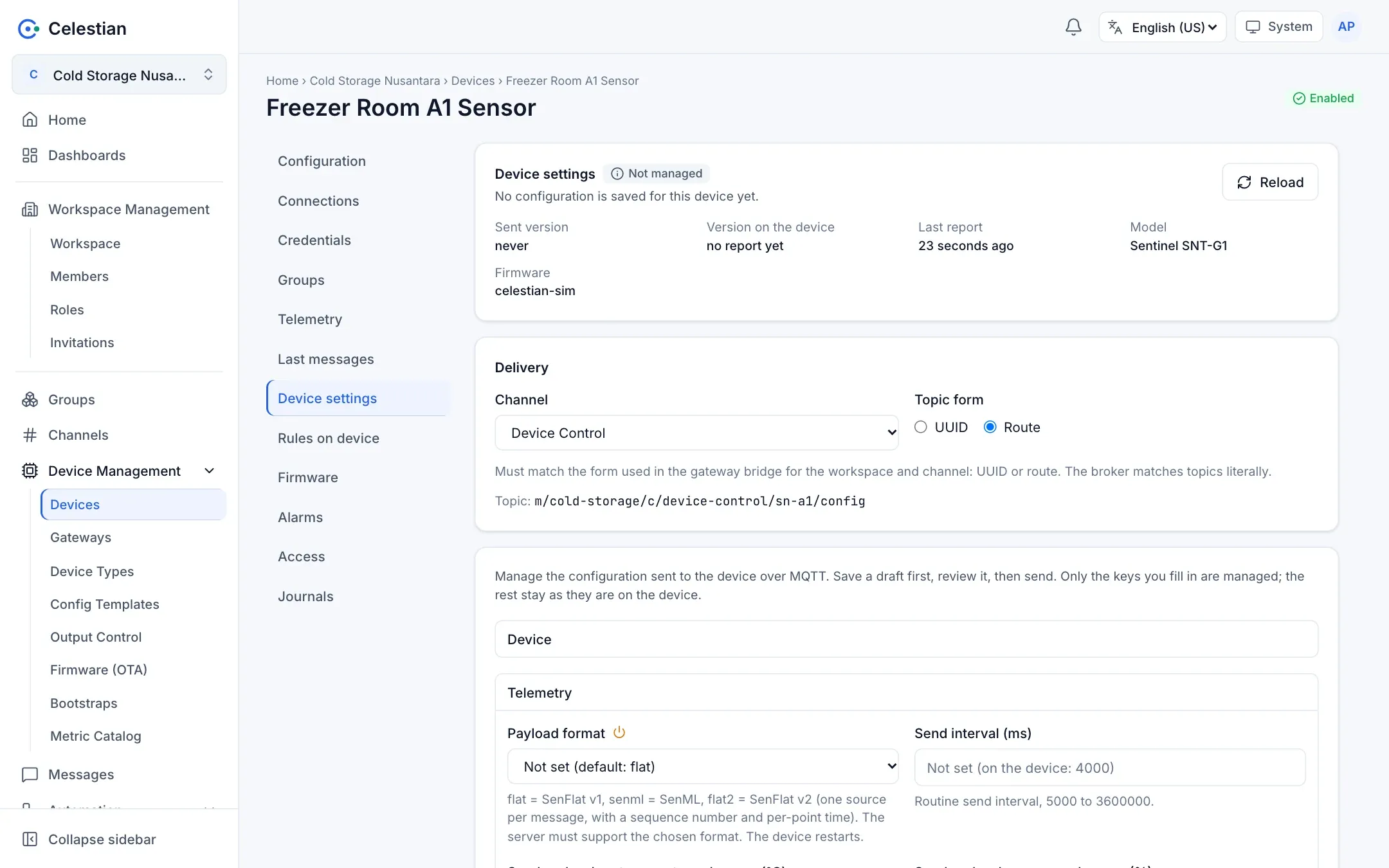
| Part | Contents |
|---|---|
| Status | A sync status badge, the sent version and the version on the device, the last report, the model, firmware, rejections, and drift. |
| Delivery destination | A channel that can deliver and the topic form (UUID or route, with a topic preview). The topic form must match the contents of the gateway bridge. |
| Settings form | Built from the model catalog: the sections Device, Telemetry, Sensors, Alarm and power, Display and buttons, Firmware, Temperature slots, Digital inputs, and Digital outputs. Each key shows the value on the device as a hint, a managed badge, a release button, and a restart marker. |
| Unbound temperature sensors | Sensors that were found but are not yet mapped to a slot, with a Bind button. |
| Commands | rescan, identify, and reboot. |
The panel refreshes itself every 15 seconds without overwriting your local draft.
Workflow
Section titled “Workflow”- Change values in the form. Only keys you fill in become managed; other keys are left as they are on the device.
- Save the draft. The draft is validated against the catalog: type, range, length, unique sensor ROMs, and cross-key rules (for example the warning threshold must be below the alarm threshold).
- Send. A confirmation dialog shows the destination topic and restart warnings if any.
- Celestian sends the whole set of managed keys in one retained message, with a
cfg_verversion number that increases automatically. The device applies it and then reports onconfig/reported.
Sync status
Section titled “Sync status”| Status | Meaning |
|---|---|
| none | No configuration yet. |
| draft | Never sent, or different from what was sent. |
| waiting | Sent; the device has not reported the same version yet. |
| partial | The same version but some keys were rejected (the reason per key is shown). |
| synced | The same version, no rejections, and the values on the device equal what was sent. |
| drift | The same version but some values on the device differ (for example changed on site). |
| replaced | The device reports a newer version (it was configured through another path). |
The automatic reconciler
Section titled “The automatic reconciler”Configuration travels Celestian → the gateway bridge → local Mosquitto (retained) → the device. If the device reports a cfg_ver older than what was sent (for example the gateway was down for more than an hour), the reconciler resends the last-sent content (not the draft) with the same version. There is a minimum interval and a cap on the number of resends per send. A device that reports the same or a newer version is not overwritten.
Catalog and validation
Section titled “Catalog and validation”The catalog mirrors the firmware fields() table: types (text, ASCII label, metric name, DS18B20 ROM with CRC, boolean, integer, decimal, enum), ranges, lengths in bytes, and reboot markers. Quoted numbers ("30000") are rejected. Per-key errors use codes such as range, rom_invalid, and warn_ge_alarm.
Reset to defaults
Section titled “Reset to defaults”The reset action sends the reset_config command. For a reset to move location, Celestian releases the send history (the draft stays saved) and clears the old retained messages before the command is sent, so the reconciler does not resend the old configuration to a device that was just reset.
Config templates and bulk apply
Section titled “Config templates and bulk apply”The menu Device Management → Config Templates stores default values for one model (without sensor bindings, since those are the identity of one device).
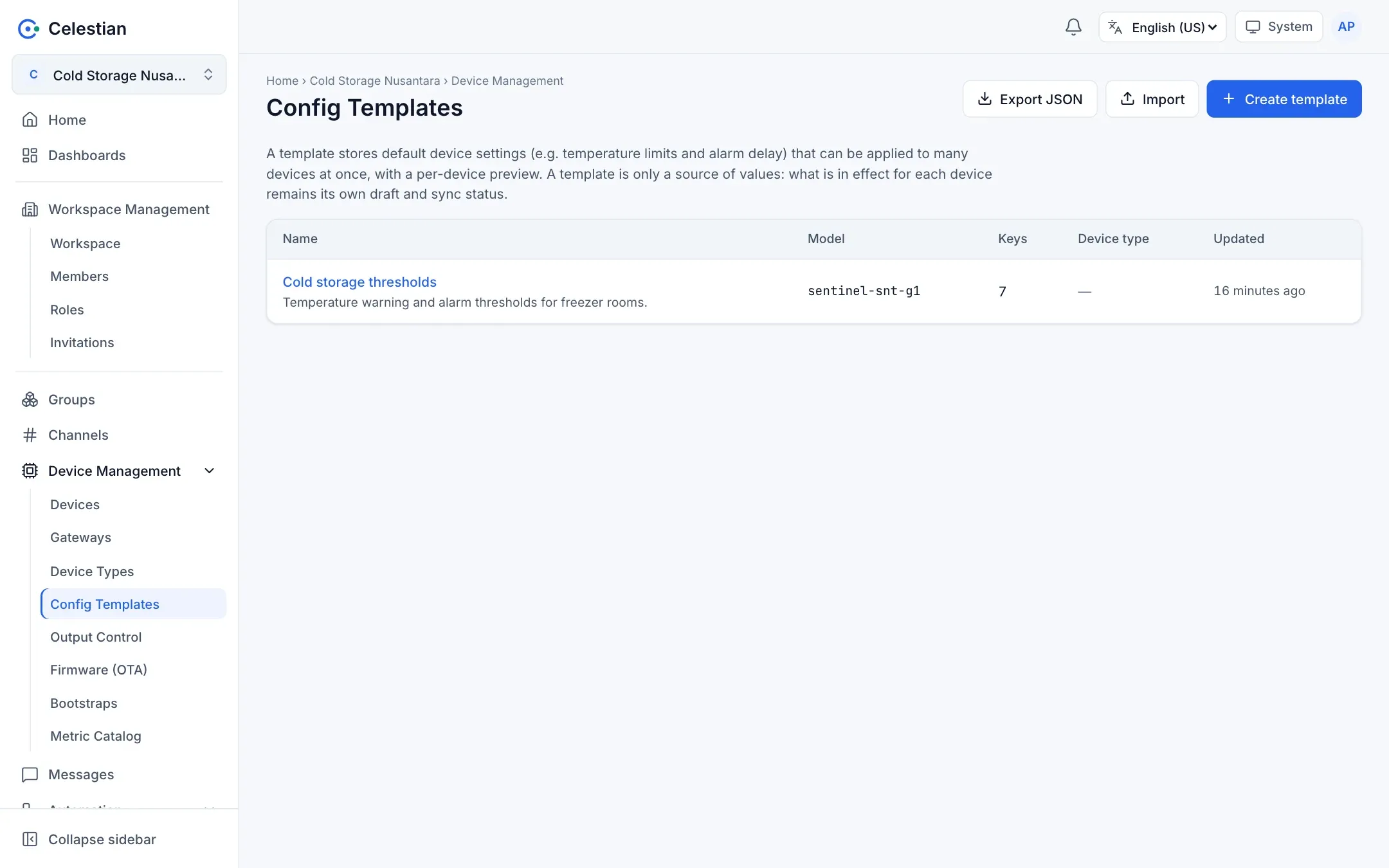
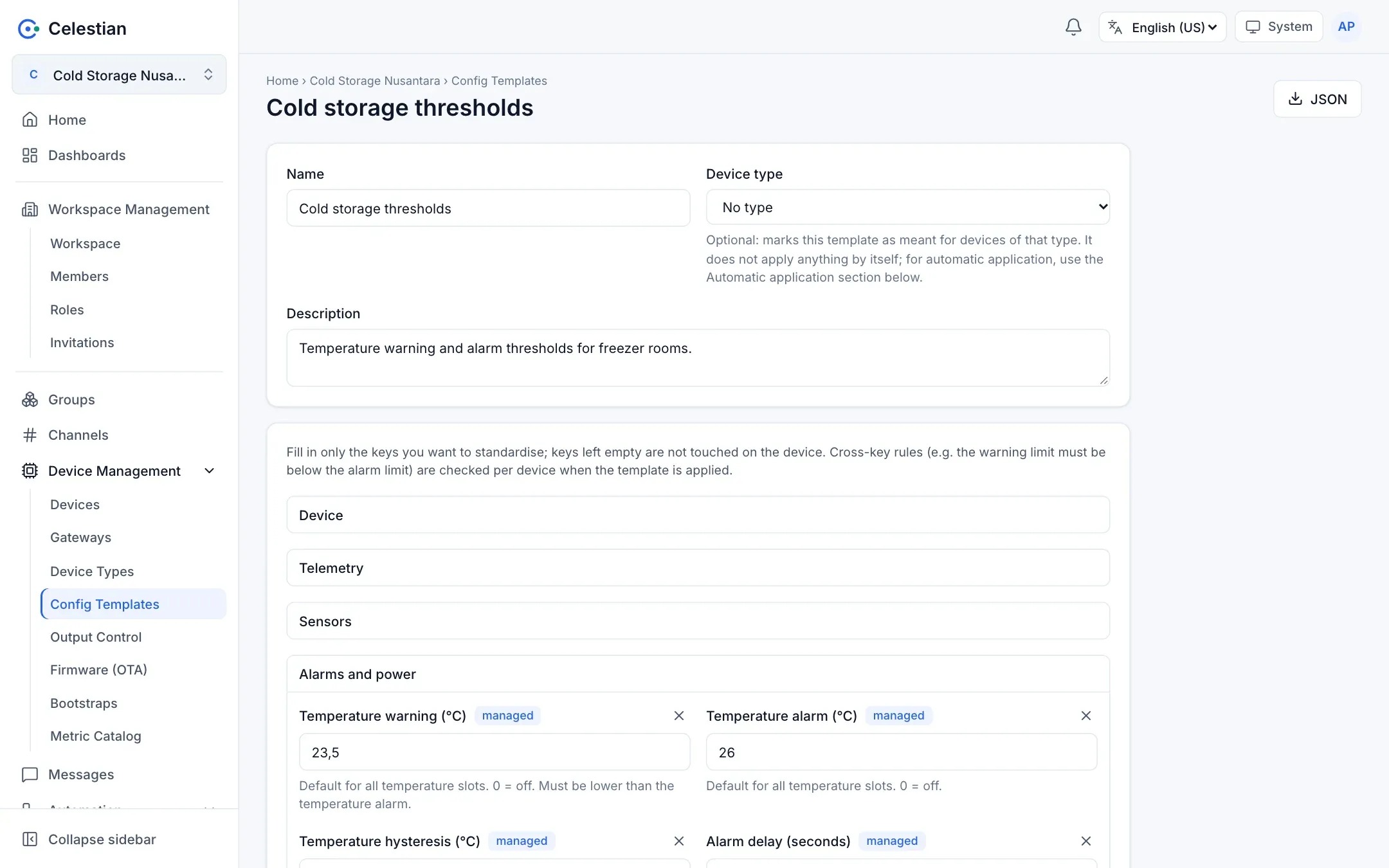
- Apply to devices: pick 1 to 200 devices (search by name, group members, or device type), then see a per-device preview (changes
from → to). The result per device:unchanged,applied(draft saved),pushed(saved and sent),invalid,skipped, orfailed. One device failing does not cancel the others. - The options Overwrite (on by default; off = only keys that are not yet managed are filled in) and Send.
- The
device.configurepermission is checked per device. - Automatic application: bind a template to a device type or a group. A device that is newly created, imported, put into a group, or changes type automatically receives a draft (only filling empty keys, layered from the type and then groups from the farthest ancestor).
- Save as template: from the Device settings tab, copy a device’s saved settings into a new template.
- Export and import files: Configuration files.
Digital output control
Section titled “Digital output control”The output command controls Digital outputs o1 to o4.
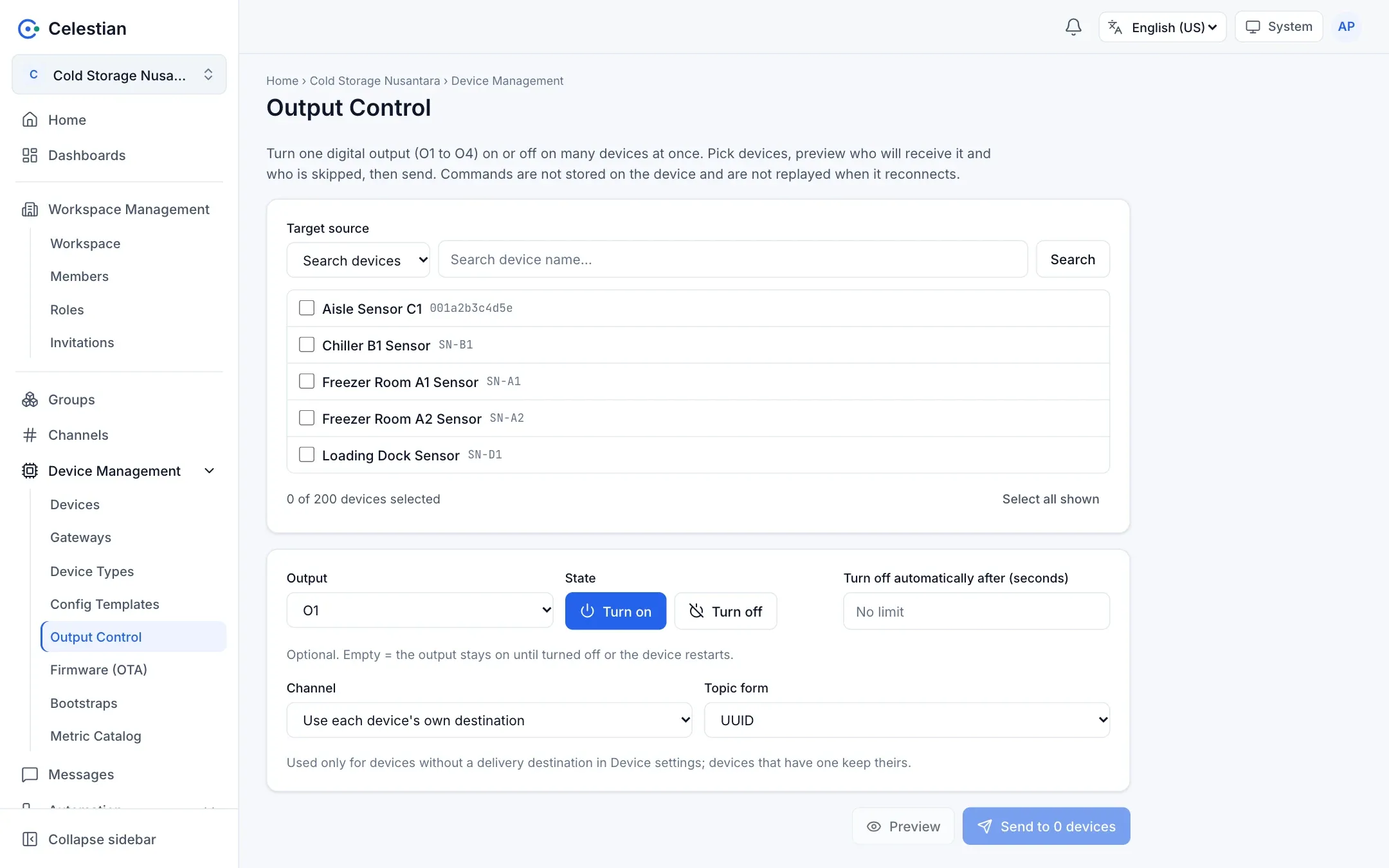
- One device: the Digital output card in the Device settings tab. The slots come from the device report; the buttons Turn on (with an optional duration in seconds) and Turn off. The card shows the last state of each output (ON, OFF, or no data yet) and waits for the device’s reply: accepted, rejected with a reason, or “no reply yet”.
- Many devices: the menu Device Management → Output Control. Choose the targets (at most 200), the output, and the state; look at the per-device preview; confirm; send. The result per device:
sent,skipped(reasons such asslot_off,no_serial,gateway,forbidden), orfailed.
Journal and security
Section titled “Journal and security”Every save, send, command, and automatic resend is recorded in Journals (the saved configuration contents carry no secrets; a send only records key names and the version). There is a rate limit per device (a burst of 5, 0.2 per second).
Alarms from the device
Section titled “Alarms from the device”A device that computes alarms itself sends boolean metrics prefixed with alarm_. The Device alarm rule output turns them into alarms in Celestian (Alarms).