
Monitor temperature and trigger an alarm
The scenario: a cold storage facility has sensors in several rooms. You want to see the temperature on a dashboard and get an alarm when the inlet temperature goes above 23.5 °C.
Prerequisites: the workspace, the channel warehouse-telemetry, and the devices have been created and connected (publish), and a storage rule is in place. If not, follow the Quick start.
1. Send data
Section titled “1. Send data”The device (or the simulator) sends SenML every few seconds:
[{"bn":"room-a1:","n":"temp_inlet","u":"Cel","v":22.4}, {"n":"temp_outlet","u":"Cel","v":33.7}, {"n":"humidity","u":"%RH","v":48.3}, {"n":"power_draw","u":"W","v":1128.3}]In Messages, the metric name is stored as room-a1:temp_inlet. If you use SenML without bn, the name is just temp_inlet.
2. Build the alarm rule
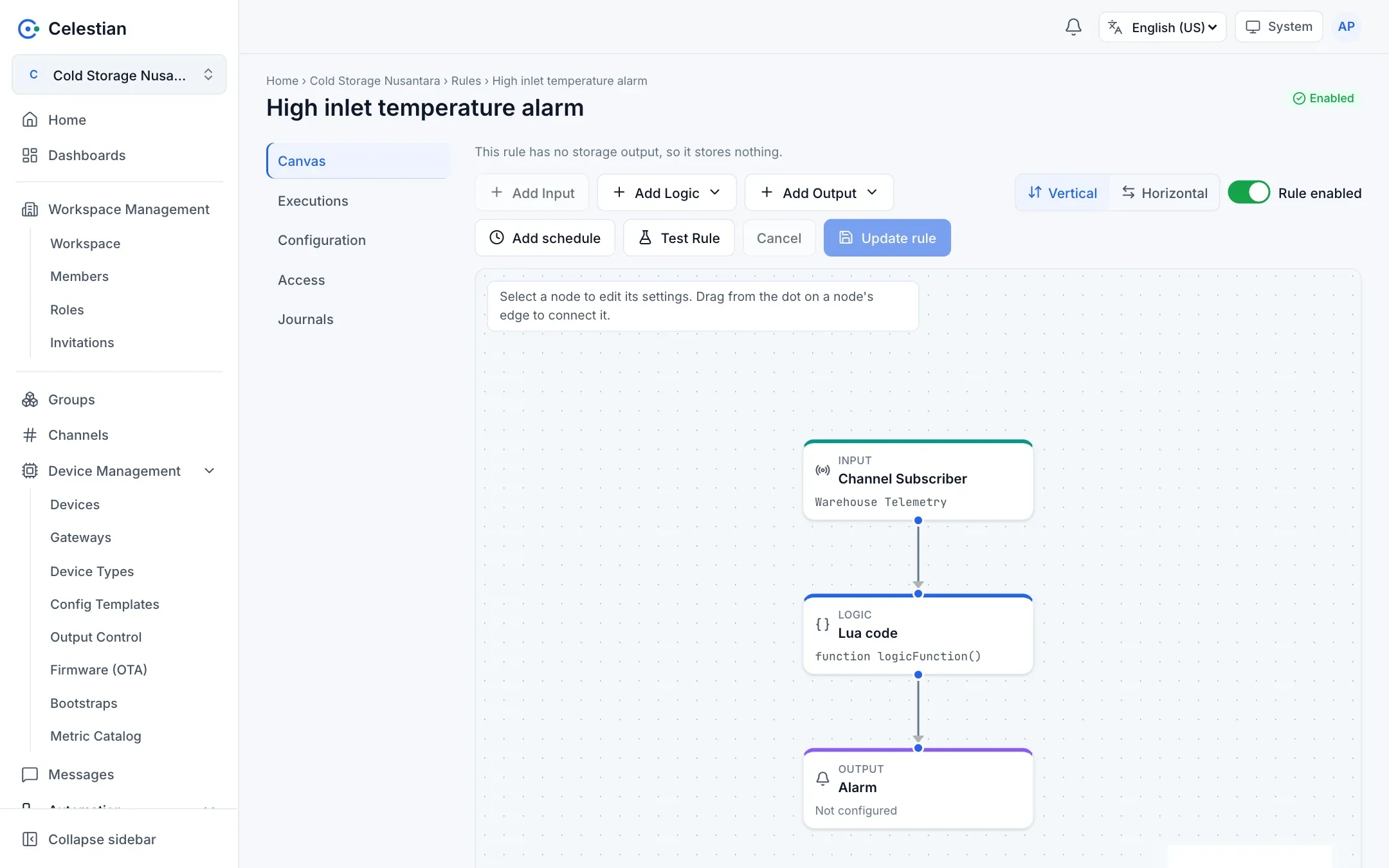
Section titled “2. Build the alarm rule”In Automation → Rules → Create rule, build:
-
Add Input: Channel Subscriber, pick the channel
Warehouse Telemetry, and leave the subtopic empty. -
Add Logic: Lua code, paste the code below. It returns an alarm object when the temperature exceeds the limit, or
falsewhen it is normal.function logicFunction()for _, rec in ipairs(message.payload) doif rec.n and string.find(rec.n, "temp_inlet$") and rec.v and rec.v > 23.5 thenreturn {severity = 70,cause = "Inlet temperature above limit",measurement = rec.n,value = rec.v,unit = "Cel",threshold = "23.5",}endendreturn falseendreturn logicFunction() -
Add Output: Alarm. Leave the fields empty (they are taken from the Lua result). Set auto-clear: after N consecutive normal messages, for example 3.
-
Save the rule with the name
High inlet temperature alarm, then turn on the Rule enabled switch.
3. Test with Test Rule
Section titled “3. Test with Test Rule”Click Test Rule and enter a sample payload. The logic really runs; the Alarm output only shows a preview, so no real alarm is created.
4. See and handle the alarm
Section titled “4. See and handle the alarm”When the temperature crosses 23.5 °C, an alarm appears in the Alarms menu, on the Home card, and in the bell in the top bar.
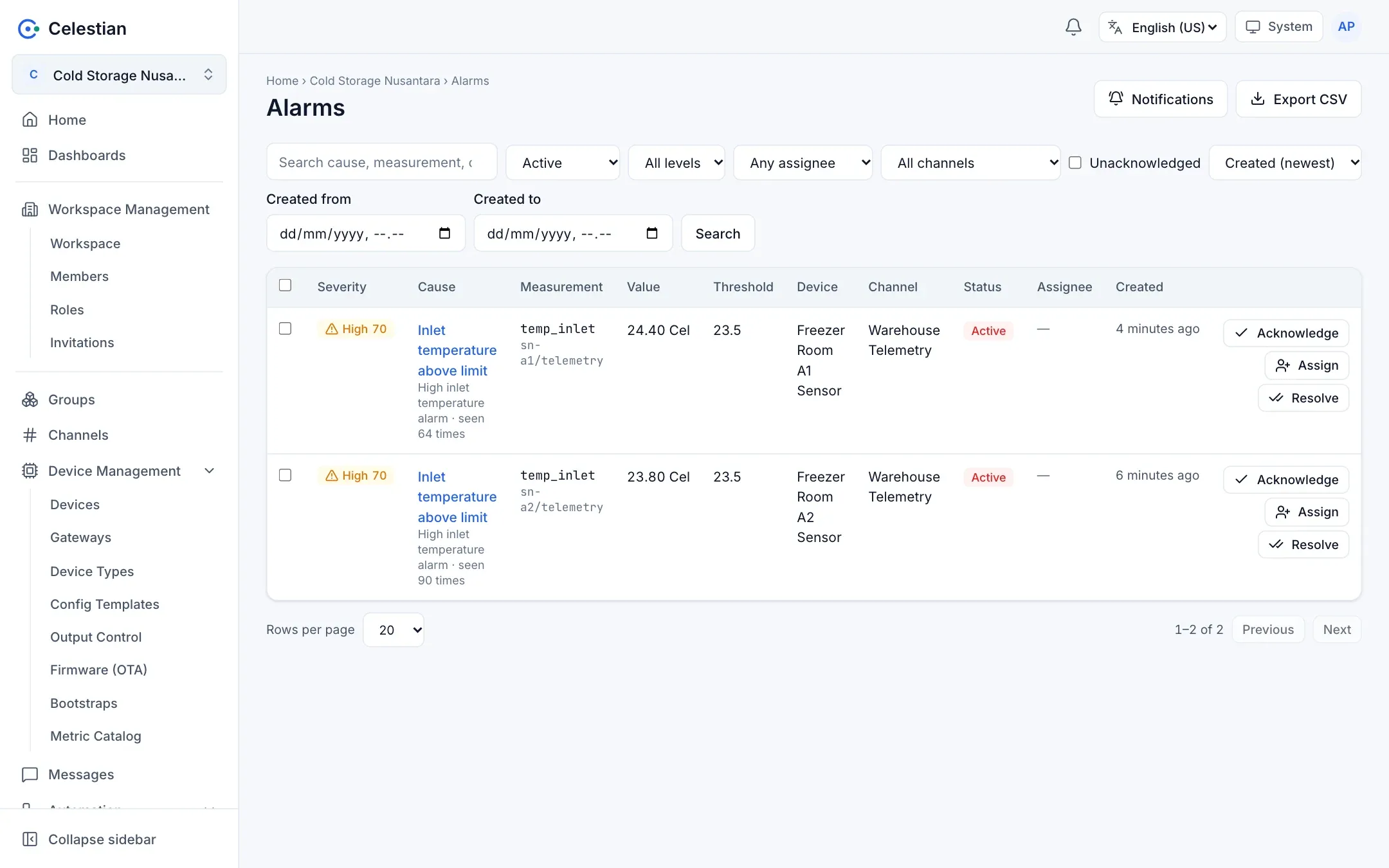
- Later readings that stay high do not create a new alarm: the occurrence counter increases (deduplication per rule, device, and measurement).
- After 3 consecutive normal messages, the alarm becomes cleared automatically.
- You can Acknowledge, Assign to a colleague, write a comment, or Resolve manually.
5. Notifications
Section titled “5. Notifications”On the Alarms page, set the workspace notifications: in-app, e-mail, and Telegram, with a minimum severity (60 by default). The Send test notification button makes sure a channel works. The severity-70 alarm in this example (High) meets the default threshold.
6. Show it on a dashboard
Section titled “6. Show it on a dashboard”Add an Alarm Table widget and a Count Card (the alarms entity) to your dashboard, together with a temp_inlet chart per room (Dashboards).
Variations
Section titled “Variations”| Need | How |
|---|---|
| An alarm only when high for 5 minutes | Use a scheduled rule with query_agg("room-a1:temp_inlet", "5m", "min") > 23.5, then an Alarm output (Scheduled rules). |
| Also send to Telegram | Add a Telegram output on the same logic; the template uses {{.Result.cause}} and {{.Result.value}}. |
| An alarm per room | Use measurement = rec.n (as in the example) so each room has its own alarm. |