
Workspace backup and restore
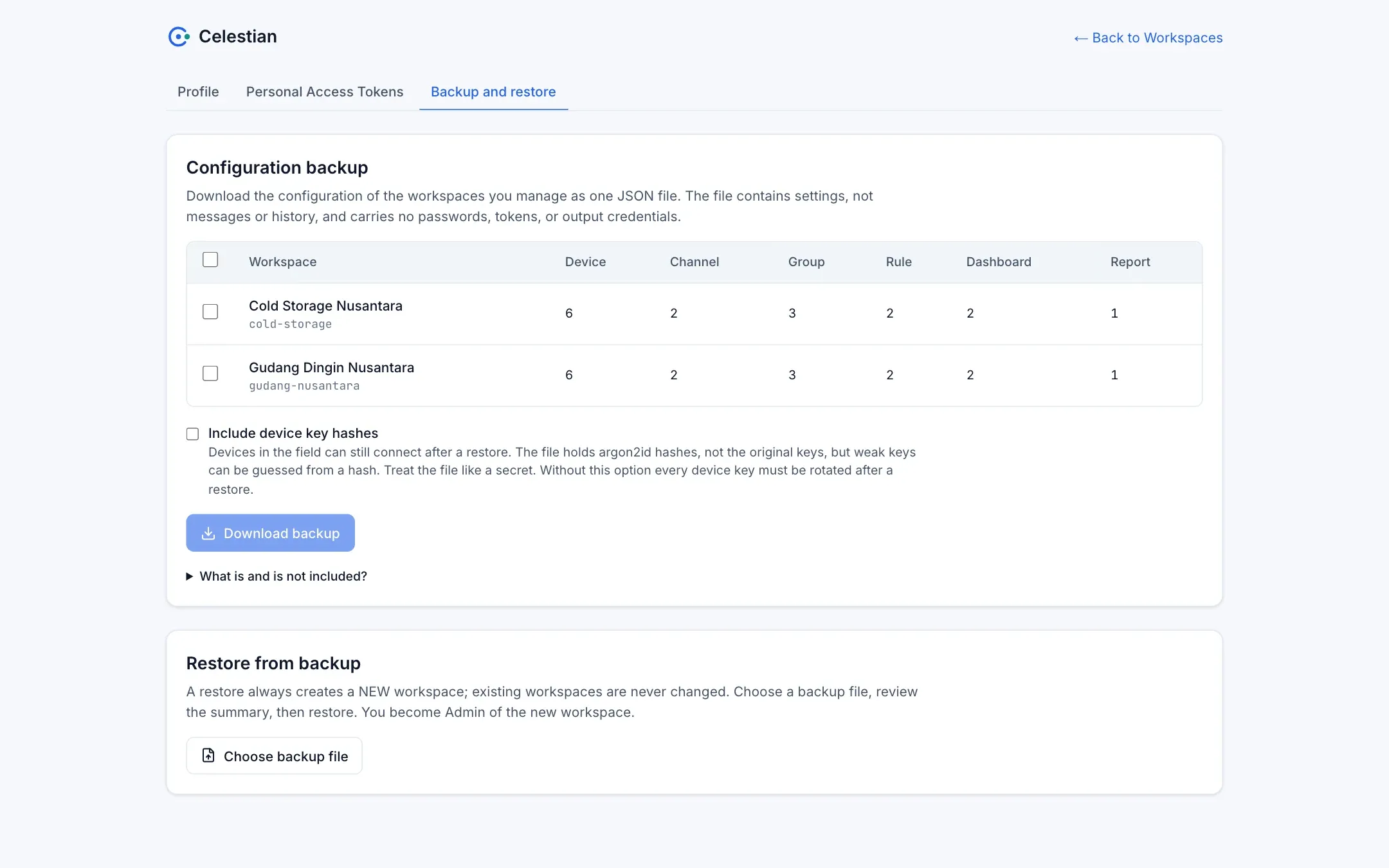
The menu Profile → Backup and restore lets you download the configuration of workspaces you manage and restore it. Useful before deleting a workspace, to move a configuration to another instance, or as a backup.
Principles
Section titled “Principles”- A restore always creates a new workspace. It never overwrites or merges, so it cannot damage data that is currently running.
- Each workspace is restored in one transaction: all or nothing.
- There are no secrets inside the file.
- Only user sessions (not a PAT) can use this feature.
What is included
Section titled “What is included”Custom roles and permission blocks, device types and their versions, channels, devices, gateway relations, connections, groups and their members, custom nodes and their versions, rules, dashboards, reports, bootstrap profiles, alarm settings, and the metric catalog.
What is not included
Section titled “What is not included”Workspace members, invitations, direct policies and role assignments, PATs, messages and time-series data, alarms, execution history, report results, journals, dashboard thumbnails, sharing lists and public links, bootstrap configurations and claims, Telegram bot tokens, and rule output credentials.
Downloading
Section titled “Downloading”Choose one or more workspaces where you hold workspace.manage (the file contains roles and access policies). The Include device key hashes option lets devices in the field keep connecting after the restore; with this option the file must be treated as a secret.
The file: versioned JSON (format: "celestian-backup"), at most 64 MB, 50 workspaces, and 500,000 rows per workspace.
Restoring
Section titled “Restoring”- Pick the file. Celestian shows a preview: a summary of the contents, warnings, quota obstacles, and a suggested route.
- Adjust the name and route of the new workspace, then choose Restore.
- You become the Admin of the new workspace. The result is reported per workspace; one that fails does not cancel those that succeed.
Automatic adjustments
Section titled “Automatic adjustments”| Object | After the restore |
|---|---|
| Rules | Restored disabled; the schedule and last status are reset. |
| Report schedules | Turned off. |
| Public or selected dashboards | Become private. |
| Alarm Telegram | Turned off. |
| Devices | Without their old key (a random hash) unless the key-hash option was used. |
After the restore
Section titled “After the restore”- Re-enter the rule output credentials, then enable the rules.
- Rotate device keys if the hashes were not included.
- Turn the report schedules back on.
- Invite members and assign roles.