
Messages
The Messages menu shows the messages stored through a rule (the Internal DB output). Live mode shows every message currently arriving at the channel, including messages that are not stored.
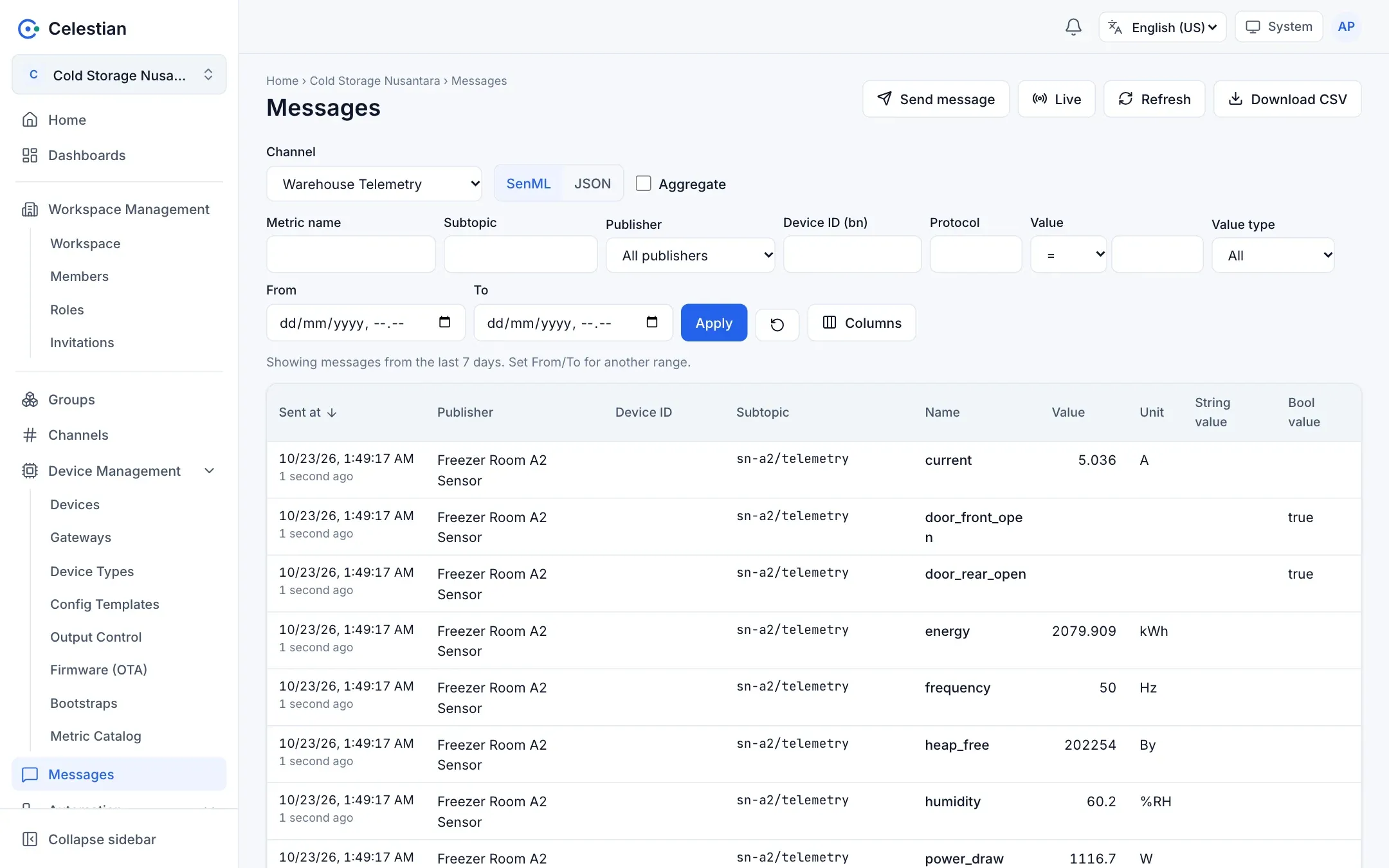
Toolbar and filters
Section titled “Toolbar and filters”| Control | Purpose |
|---|---|
| Channel | Choose the channel to read. You only see channels you may read. |
| SenML and JSON tabs | Structured metrics (one row per metric) or the full JSON payload from the Internal DB (JSON) output. |
| Aggregate | A checkbox for the aggregated view (below). |
| Send message | Send a test message to the channel (below). |
| Live | Opens the realtime message stream (below). |
| Refresh | Refreshes the table. |
| Download CSV | Downloads a CSV with the active filters (at most 50,000 rows). |
| Columns | Choose the visible columns (remembered in your browser). |
The filter row: Metric name, Subtopic, Publisher, Device ID (bn), Protocol, Value (with a comparator) and Value type, and the From and To range. Choose Apply to run the filter, or the reset button to clear it.
Columns (SenML)
Section titled “Columns (SenML)”Sent at (with a relative description), Publisher (the name of the authenticated device or gateway), Device ID (bn or id; the registered device name when matched), subtopic, protocol, metric Name, Value, Unit, String value, Bool value, the data value, sum, and the update time. The column selection is remembered in your browser. Click a row to see the payload with syntax highlighting.
SenFlat v2 messages whose device clock is not trusted carry the Estimated time badge (the time is estimated from the server’s receive time). See SenFlat v2.
Filter rules
Section titled “Filter rules”- When From and To are empty, the last 7 days are shown.
- Value comparators:
=,≠,>,≥,<,≤. - Newest or oldest first (click the Sent at column heading).
Pagination uses a time cursor, not page numbers, so the result stays consistent even while new data keeps arriving.
Aggregation
Section titled “Aggregation”Tick Aggregate, then choose a function (min, max, avg, sum, count) and an interval (1 minute, 5 minutes, 15 minutes, 1 hour, 6 hours, 1 day). The result is a card per metric name with a sparkline, plus a table per time bucket.
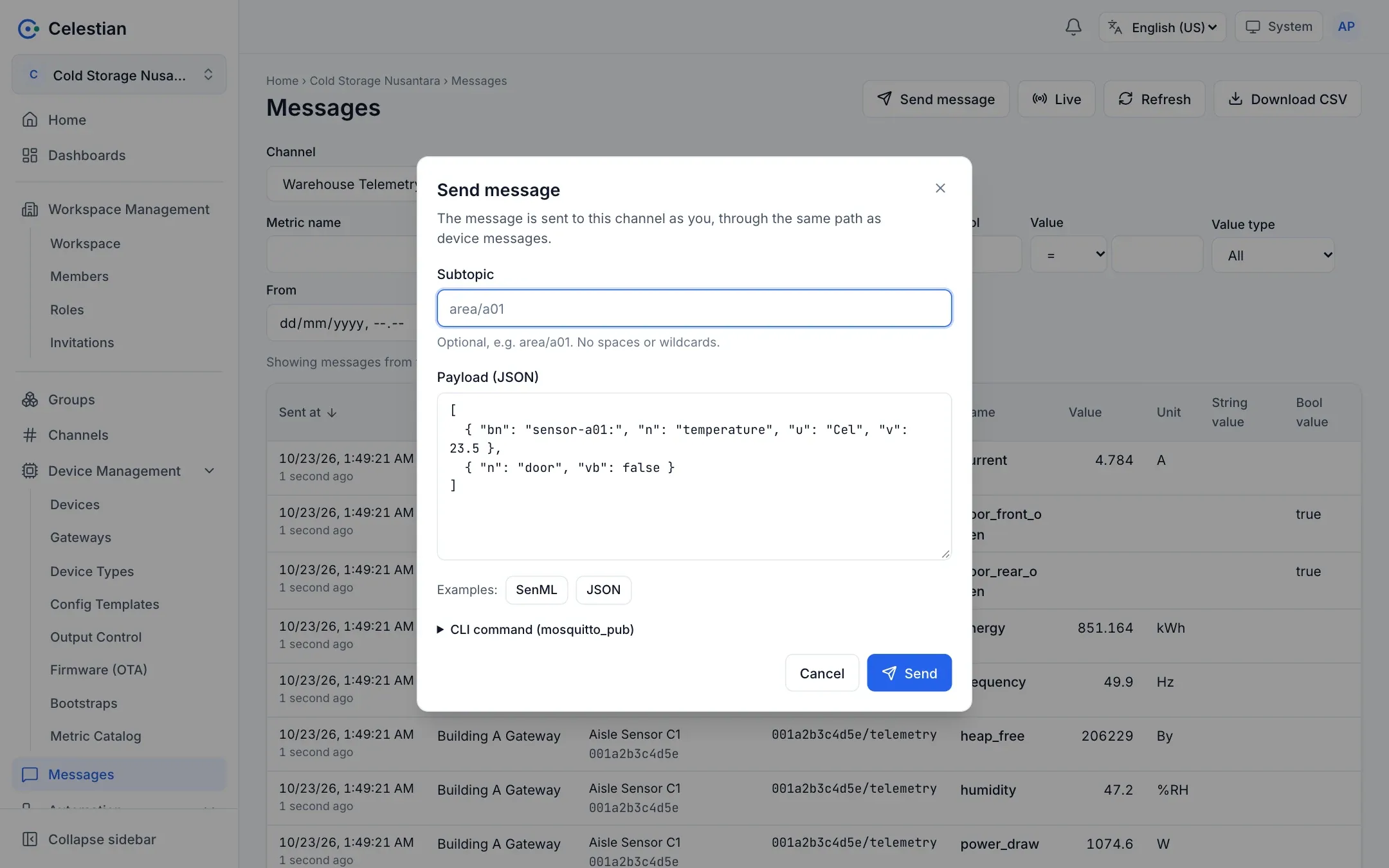
Sending a message
Section titled “Sending a message”Send message opens a form with a subtopic and a payload (SenML or JSON) with template examples. The message is sent on your behalf over the same path as device messages, so rules that process the channel process it too. It is recorded with the ui protocol and the publisher = your account. The channel.publish permission on that channel is required. The form also shows a mosquitto_pub command that is filled in automatically.
The Live button opens a realtime stream (SSE). Messages appear instantly while the page is open, are not stored, and when they arrive too fast some are skipped with a notice. The channel.subscribe permission is required. The Clear button empties the Live list.
Download CSV
Section titled “Download CSV”Downloads data according to the filters. Values starting with =, +, -, or @ are neutralized so they are safe to open in a spreadsheet. The time_trusted column marks estimated times.