
Dashboards
A dashboard is a page of widgets that show data from your channels. Menu: Dashboards.
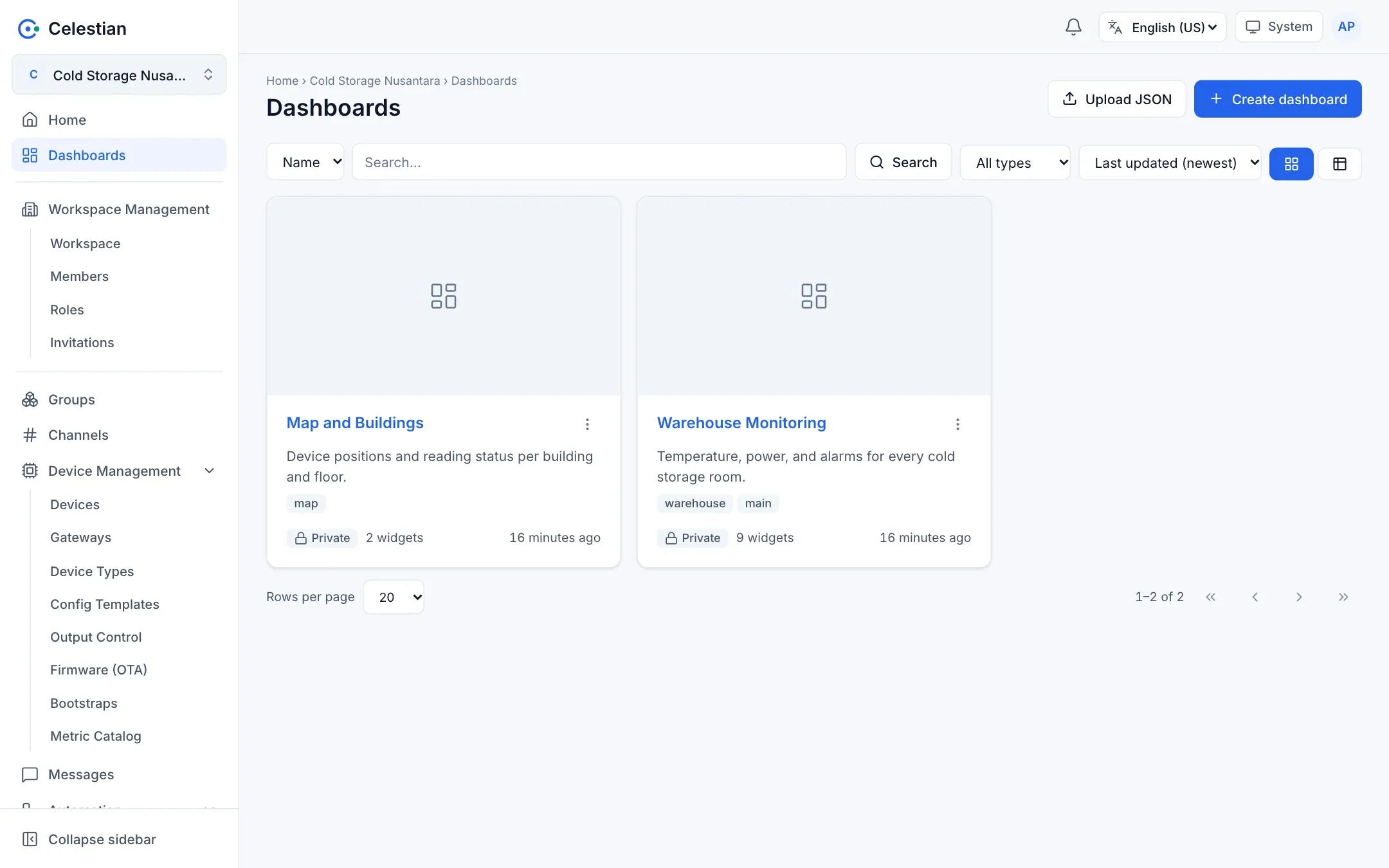
The dashboard list
Section titled “The dashboard list”A card or table view, search (name, tag, ID), sorting, and a type filter (Dashboard or Template). Actions on each dashboard: edit metadata, share, duplicate (or create from a template), copy ID, and delete. Create dashboard and Upload JSON are available.
Creating a dashboard
Section titled “Creating a dashboard”Choose Create dashboard, fill in a name, description, tags, and the type (Dashboard or Template). A thumbnail (a 640×360 JPEG generated automatically from an image of up to 5 MB) can be set through Edit metadata. A new dashboard is always private.
The dashboard page
Section titled “The dashboard page”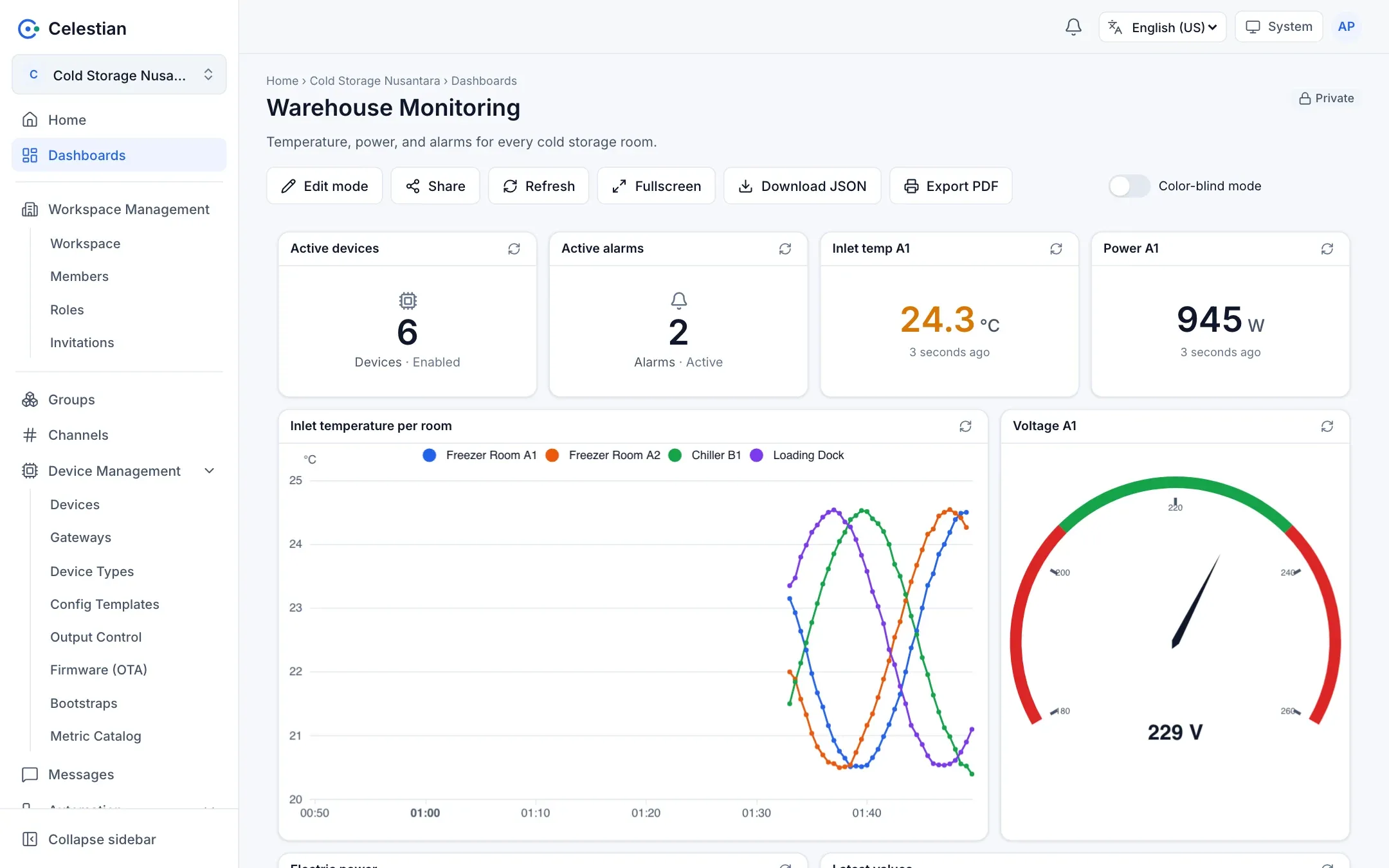
The view-mode toolbar: Edit mode, Share, Refresh, Fullscreen, Download JSON, Export PDF, and Color-blind mode (different markers and line styles per series, remembered per browser).
Edit mode
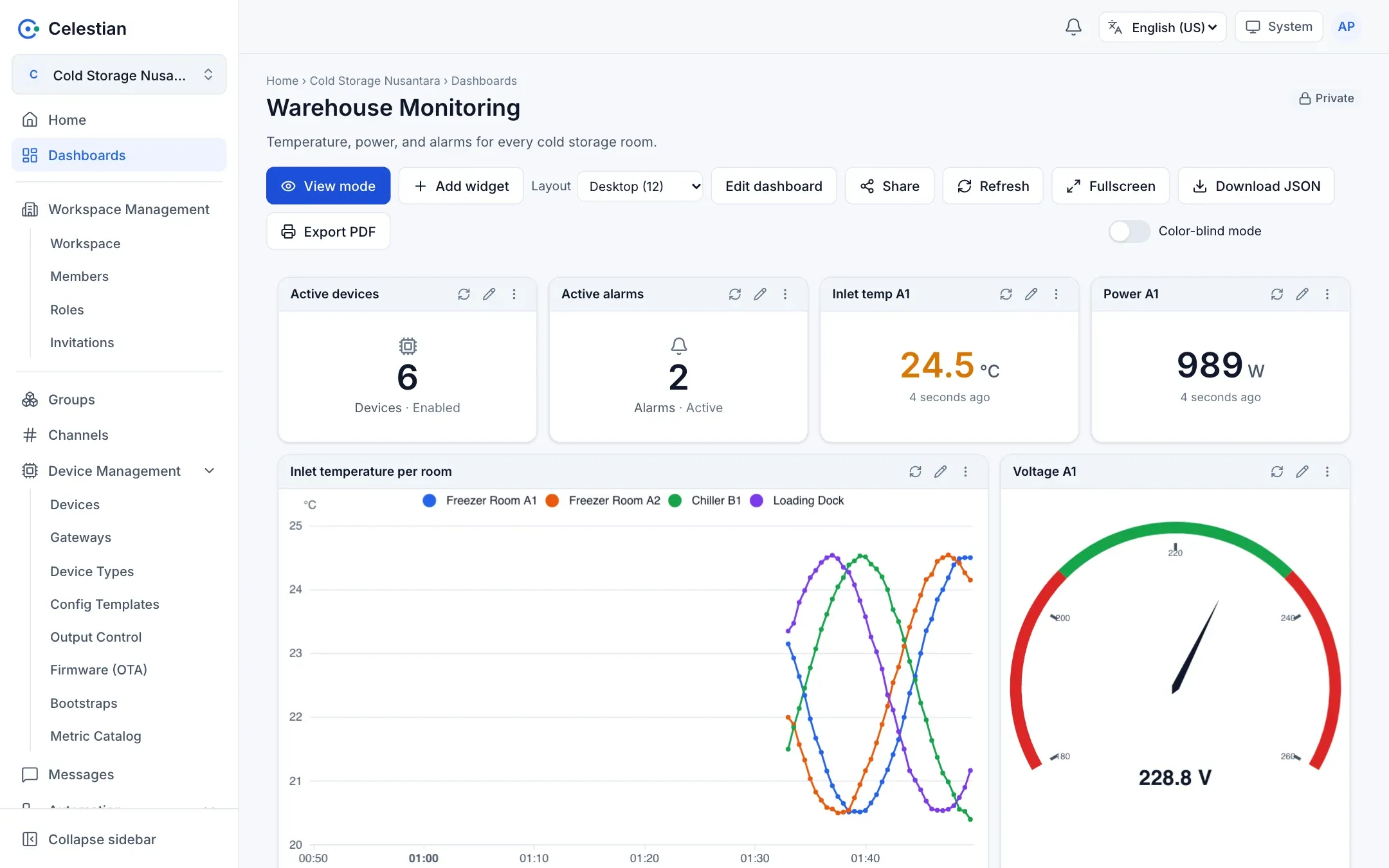
Section titled “Edit mode”- Choose Edit mode.
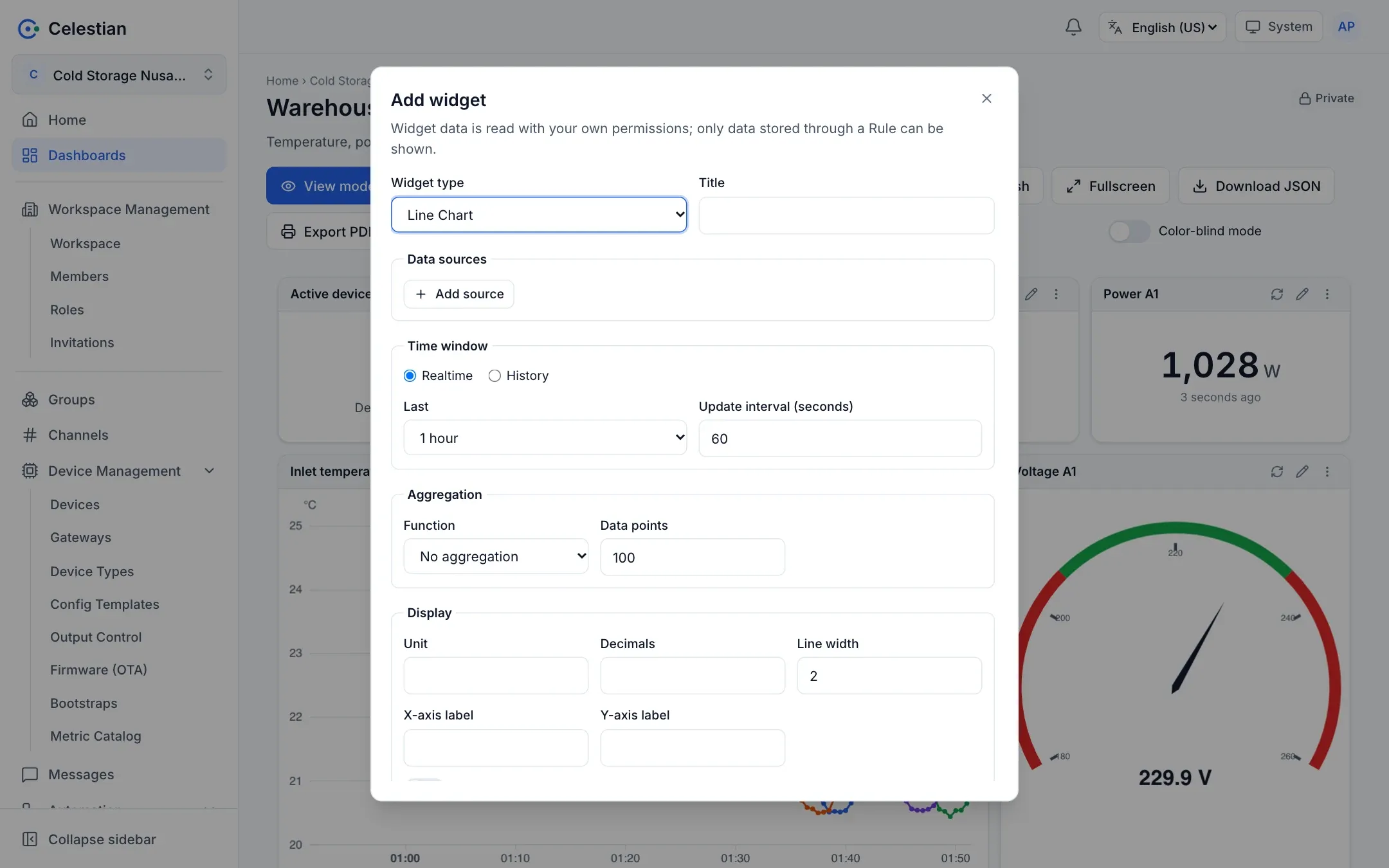
- Add widget, pick its type, then fill in the configuration.
- Drag a widget by its title to move it, and drag a corner to resize it. Changes are saved automatically.
- Choose Layout (for example Desktop (12)) to arrange a separate layout per screen size:
lg(desktop, 12 columns),md(laptop, 10),sm(tablet, 6),xs(phone, 4),xxs(small phone, 2). The breakpoint is determined by the container width, not the screen width. - The widget menu: a refresh icon, a pencil icon (edit), and a three-dot menu (duplicate, delete). Edit dashboard edits the name, description, tags, and thumbnail; View mode returns to the normal view.
The server limits the document: at most 50 widgets, 10 sources per widget, and a widget configuration of at most 16 KiB. Two people editing at the same time are protected by version locking: when a version is stale, a Reload page banner appears.
Widgets
Section titled “Widgets”| Category | Widgets |
|---|---|
| Time series | Line Chart, Area Chart, Bar Chart, Pie Chart |
| Cards | Value Card (one number with color thresholds), Count Card (the number of devices, gateways, channels, rules, dashboards, or alarms), Table Card |
| Gauge | Gauge Chart (range and color zones) |
| Status | ON/OFF status for boolean sensors (doors, contacts), with since-when and the number of changes |
| Control | Switch, Slider (send messages to a channel) |
| Map | Map (device markers and perimeters from metadata), Route Map (GPS route) |
| Alarm | Alarm Table |
| Facility | Building Overview (device reading status per building and floor) |
Common configuration
Section titled “Common configuration”- Data sources (several allowed): Channel, Device (optional; filters the publisher), Value name (for example
temp_inletor001a2b3c4d5e:temp_inlet, with autocomplete), and Label and Color. - Time window: Realtime (the last N seconds, from 1 second to 30 days, with an update interval) or History (from and to).
- Aggregation: none, min, max, avg, sum, count, or last, with an interval and a number of points.
- Display: unit, decimals, axis labels, line width, color thresholds (Value Card), zones (Gauge), and sample data for previews.
- The channel and device pickers show the first 100 by name.
Special widgets
Section titled “Special widgets”Switch and Slider send messages to a channel on your behalf (the channel.publish permission) and are disabled in edit mode. A slider sends when released. Pick the SenML format ([{"n": name, "v": 1|0|value}]) or JSON (an ON/OFF payload or a template with {{value}}), the channel, the subtopic, and the topic form (route or UUID). Important: the broker matches topics literally, so the device must subscribe to the same topic form that the widget chooses.
The Map reads the location and perimeter metadata of devices (Metadata) and shows connection status with an icon and text, not color alone.
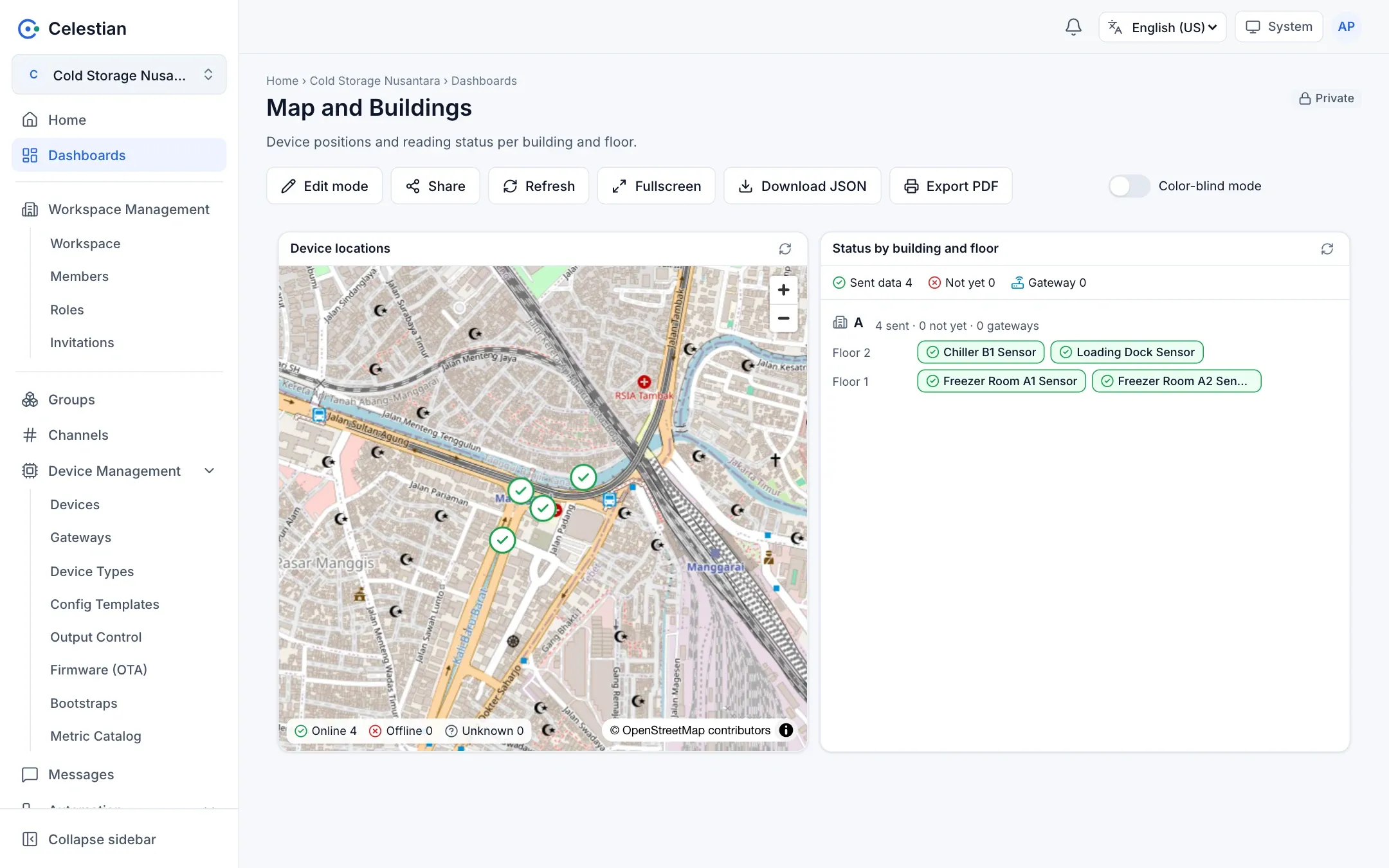
Route Map draws a GPS tracker’s route from stored data. The full guide: GPS trackers and Route Map.
Building Overview groups devices per building and floor (from the building and floor metadata): green = sent data within the configured window, red = not yet, blue = gateway. Each marker also carries an icon and links to the device detail.
Alarm Table shows alarms by status and severity.
Sharing
Section titled “Sharing”Choose Share (requires the dashboard.share permission):
| Option | Meaning |
|---|---|
| Private | Only the creator and holders of the share permission. |
| Workspace members | All members with the dashboard.read permission. |
| Selected users | Up to 50 members you choose. |
| Public | Anyone with the link /share/d/<token>, without signing in. |
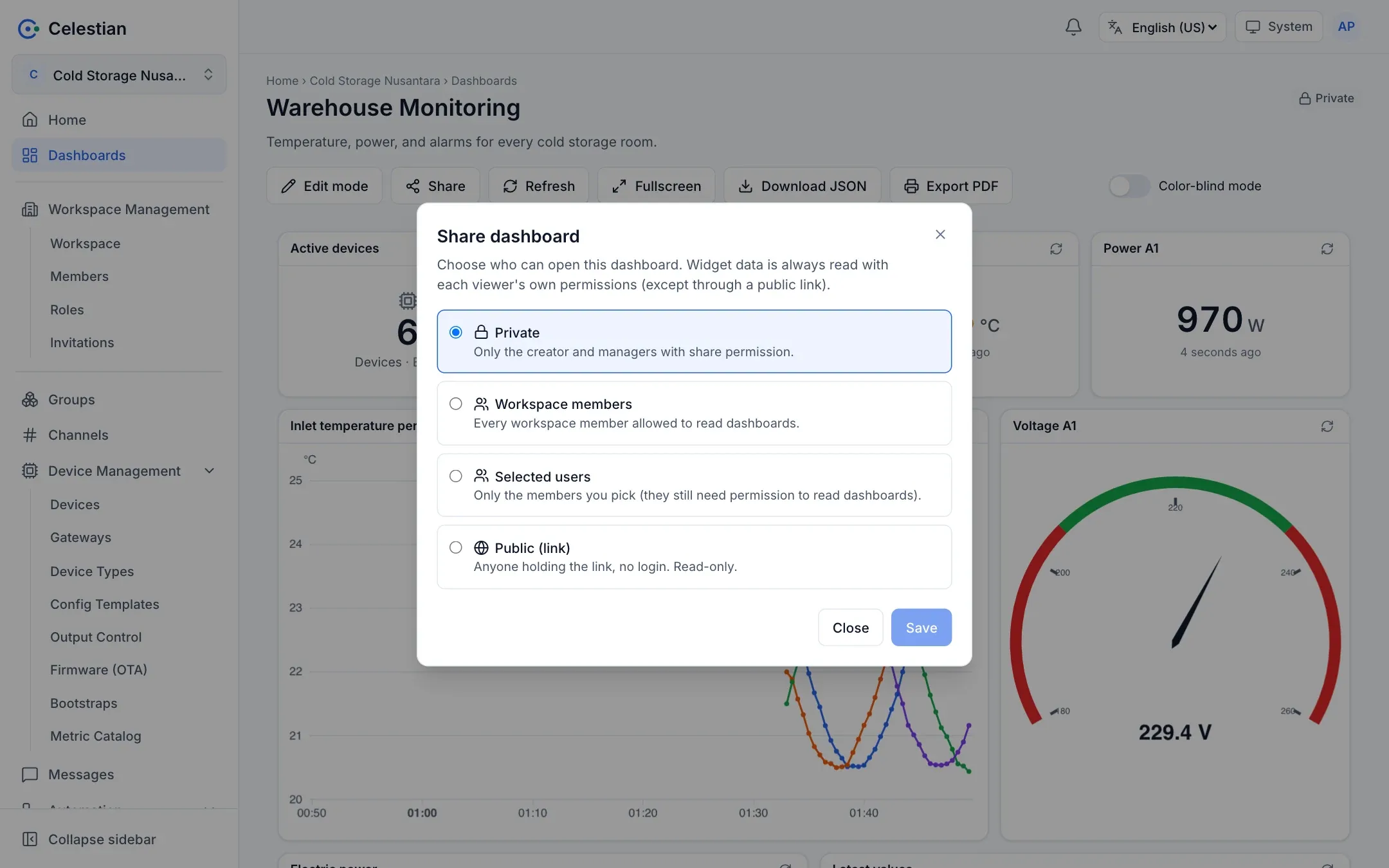
Widget data is read with the permissions of the person viewing the dashboard, not those of its creator, so sharing a dashboard does not open channel data that the recipient may not see.
Public links
Section titled “Public links”- The token is random 256 bits. Create new link rotates the token (the old link immediately returns 404). Switching to another option revokes the token.
- Read-only. The Switch, Slider, and Count Card widgets are not available in the public view. The Map, Route Map, Building Overview, and Status widgets are also unavailable because they contain device locations or state.
- Data can only be read through the saved widget configuration, so the token cannot be used to read other channels or metrics.
- The person granting public access must themselves be allowed to read every channel used by the widgets.
- A limit of 300 requests per minute per token. The page is not indexed by search engines and carries no referrer.
- A template cannot be made public.
Export and import
Section titled “Export and import”- Export PDF: opens a print view (A4 landscape, light theme, widgets are not split across pages) and then the browser’s print dialog; choose Save as PDF.
- Download JSON and Upload JSON: the format
{name, description, tags, type, layouts, widgets}. Useful for moving a dashboard between workspaces or starting from a template. - Templates: a dashboard of the Template type can be copied into a regular dashboard (the copy is always private and yours, without a thumbnail).
Permissions
Section titled “Permissions”dashboard.read, dashboard.write, dashboard.delete, and dashboard.share, including per object and per tag. A dashboard you may not see answers 404.