
Alarms
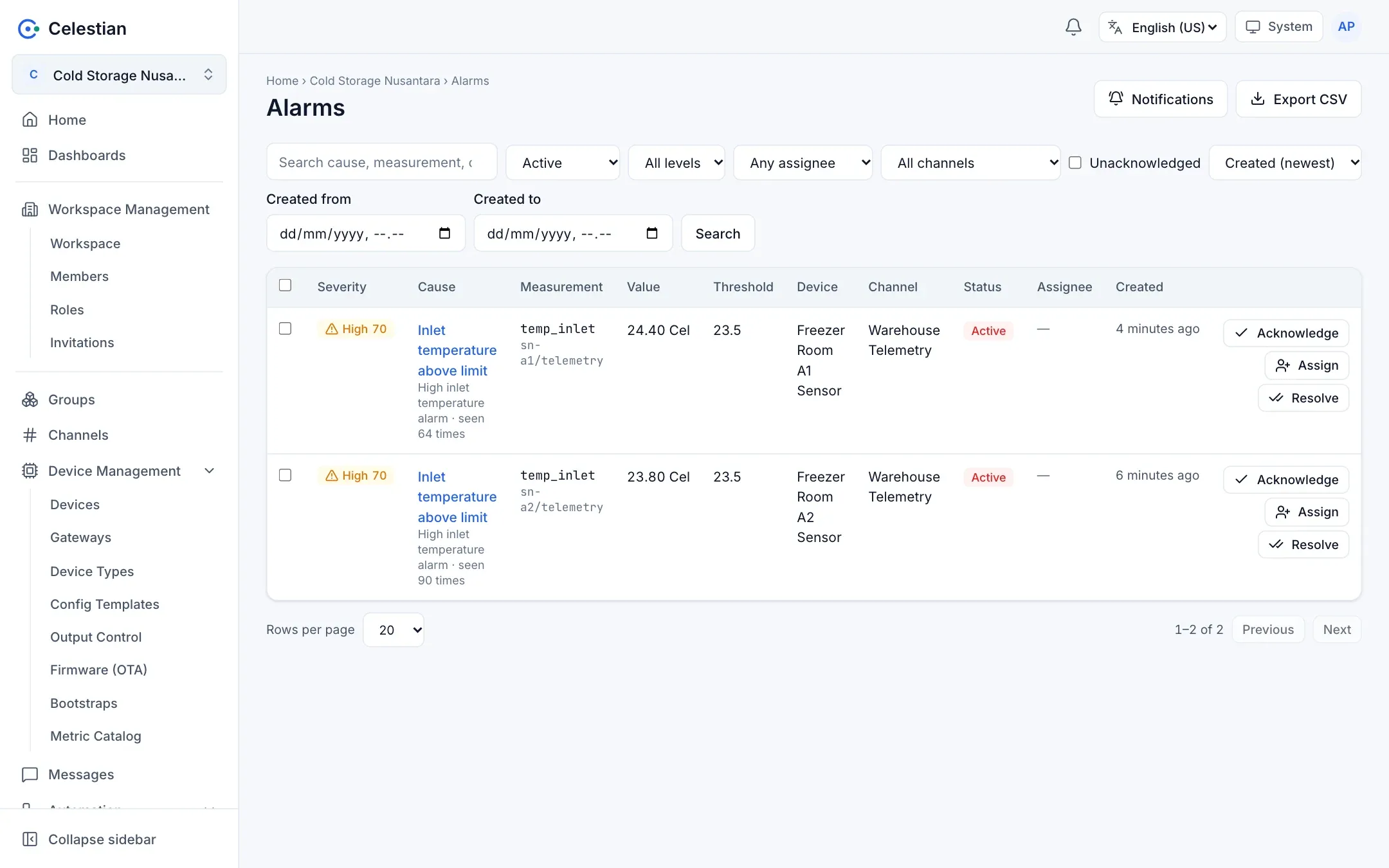
An alarm is an event created by a rule (the Alarm or Device alarm output) for people to handle. Menu: Alarms.
Creating alarms
Section titled “Creating alarms”Alarms are created by rule outputs. A complete example rule: Monitor temperature and trigger an alarm. The fields: severity (0 to 100), cause, measurement, and value, unit, threshold (optional).
Severity
Section titled “Severity”| Range | Level |
|---|---|
| 0 to 29 | Low |
| 30 to 59 | Medium |
| 60 to 89 | High |
| 90 to 100 | Critical |
Important rules
Section titled “Important rules”- Deduplication: at most one active alarm per combination of (rule, device, measurement). A recurrence updates the value, severity, cause, and the occurrence counter, without creating a new alarm. After an alarm is cleared, the next occurrence creates a new active alarm. Occurrences within 2 seconds are merged so that a rule that fires on every message does not write to one row thousands of times per second.
- Auto-clear (per output): minutes (an active alarm that has not recurred for N minutes, swept every 30 seconds) or messages (N consecutive normal messages from the same device).
- An alarm has the status active or cleared (the reason is resolved or auto).
Handling alarms
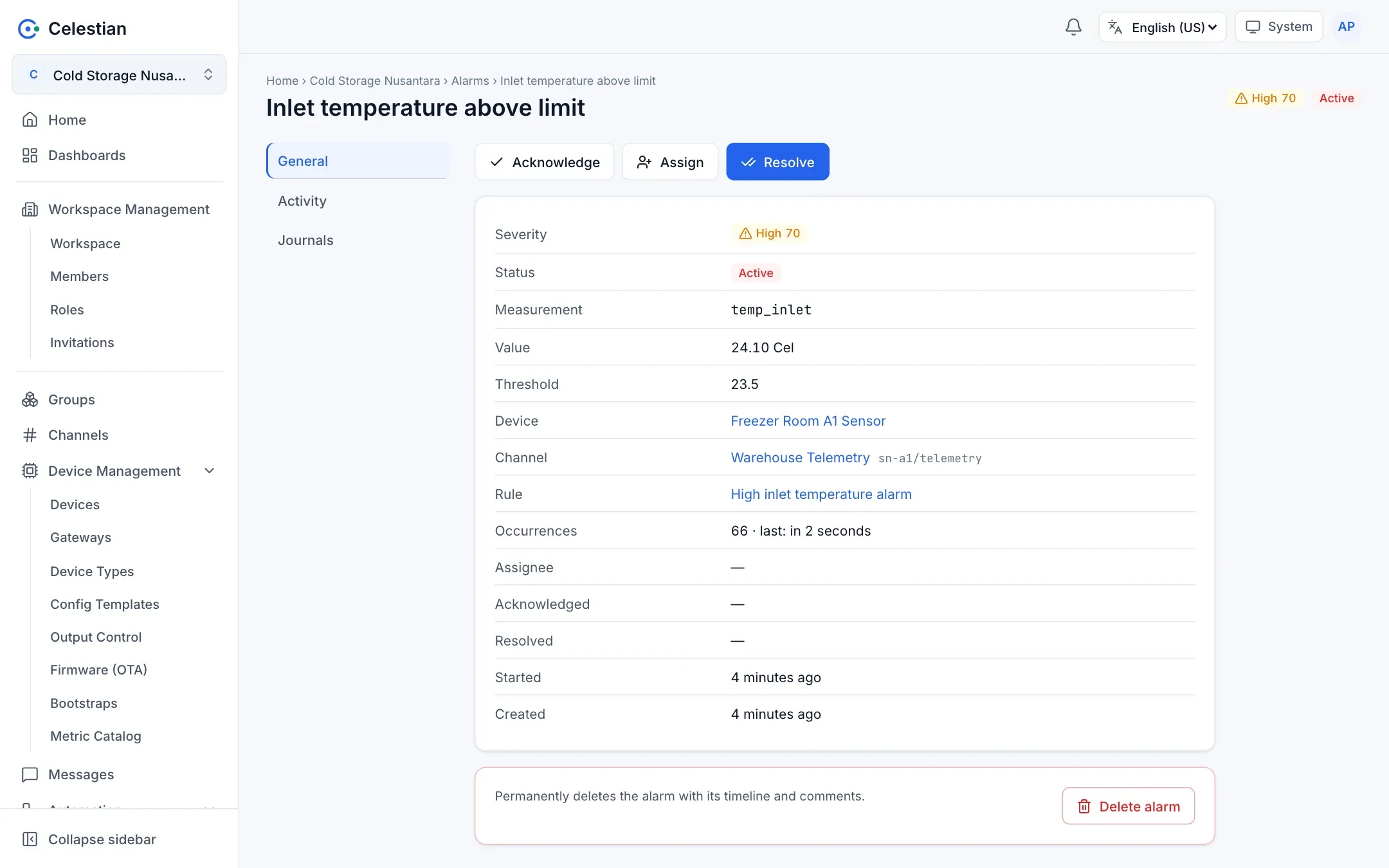
Section titled “Handling alarms”| Action | Description |
|---|---|
| Acknowledge | Marks that you have seen it. Once per alarm. |
| Assign | Assign it to an active workspace member. An assignment can be removed. |
| Resolve | Resolves the alarm (acknowledges it automatically if it was not yet). |
| Comment | Discussion between users, also on alarms that are already resolved. |
| Delete | Permanent deletion. |
An alarm detail has three parts: general details, the timeline (created, acknowledged, assigned, resolved, auto-cleared), and an activity log with comments.
Bulk actions
Section titled “Bulk actions”Tick active alarms, then choose Acknowledge selected or Resolve selected (at most 100). Each alarm is processed on its own, so the result can be partial: done, skipped (already acknowledged or resolved), or failed, with a per-alarm summary.
Filters, search, and export
Section titled “Filters, search, and export”Filters: channel, device, rule, subtopic prefix, severity range, status, assignee (anyone, unassigned, me), unacknowledged, and the creation time range. Search covers the cause, measurement, and rule.
Export CSV contains up to 27 selectable columns (at most 50,000 rows) with CSV-injection neutralization.
Notifications
Section titled “Notifications”Per-workspace settings (the workspace.write permission) on the Alarms page:
| Channel | Description |
|---|---|
| In-app | The bell in the top bar shows a badge with the number of new active alarms and the five latest alarms. |
| Up to 10 recipients. | |
| Telegram | A bot token (stored encrypted) and a chat ID. |
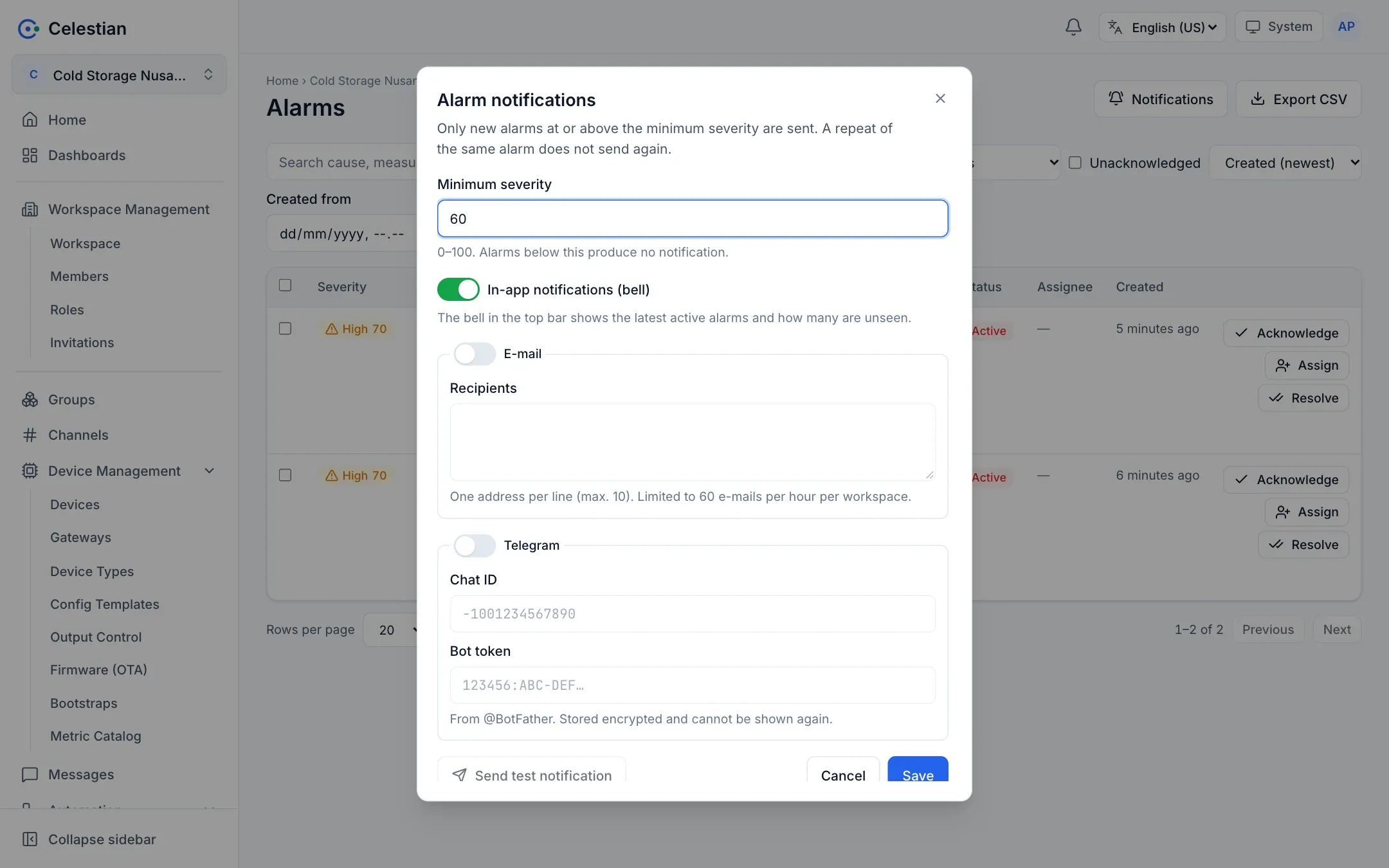
- Choose the minimum severity (60 by default).
- Only new alarms send notifications, not recurrences.
- Limited per workspace per channel (a burst of 10, 60 per hour) so an alarm storm does not flood.
- The Send test notification button tests the active channels and reports the result per channel.
- A message includes the level, cause, value, threshold, rule, and a link to the alarm.
Alarms and gateway history data
Section titled “Alarms and gateway history data”A gateway that sends history after its connection recovers can make old alarms reappear. The Alarm and Device alarm outputs have a Gateway history data section:
- History window (minutes, 5 by default): history points whose age is within the window are treated like live data; older ones are skipped.
0means history never changes alarms. - Record retroactive alarms (off by default): history older than the window is recorded as an alarm with its original event time, without notification, and without disturbing a running alarm. It appears with a Retroactive label and a Started column.
- A per-alarm time marker prevents late or out-of-order data from flipping the state.
Time requirements for data
Section titled “Time requirements for data”Whether a piece of data may trigger an alarm depends on its time. In short:
| Data | Rule |
|---|---|
| Live data | There is no age limit. A message delayed by the network still triggers an alarm, as long as its time is newer than the last data already evaluated for that alarm. |
| Gateway history | Evaluated only when the age of the point (receive time minus data time) does not exceed the history window (5 minutes by default). Older points are skipped, or recorded as a retroactive alarm when that option is on. |
| Time order | Data that is not newer than the last one evaluated is skipped, so history arriving after live data, or messages arriving out of order, do not flip the state of an alarm. |
| Untrusted device clock | The data time is estimated from the receive time (trusted time) and used as it is. The alarm is not rejected because of that. |
The details:
- The time marker is kept per rule, device, and measurement, and remembered for 30 days. When the marker cannot be read, the data is still evaluated: better to evaluate than to lose an alarm.
- A data time more than 5 minutes ahead of the receive time does not advance the marker any further. A device clock that briefly jumped ahead does not make later alarms ignored until that time has passed.
- The Alarm output judges one point per message. For a gateway history message that has not been split, the newest point is used; split it first with the SenFlat v2 splitter → rows node when every point needs its own judgement.
- Logic nodes also have a Data scope (all, live only, or live plus fresh history) that filters data before it reaches the output; see Shared options. A newly created Comparison judges live data only.
- A minutes auto-clear is counted from the last recurrence of the alarm.
Where else they appear
Section titled “Where else they appear”- Home: the Alarms card (total, active, cleared, for me, acknowledged by me, active rate, per severity).
- Device and channel detail: the Alarms tab with Acknowledge and Resolve actions.
- Dashboards: the Count Card widget (the alarms entity) and the Alarm Table.
Permissions
Section titled “Permissions”The alarm scope (read, update, delete, assign, acknowledge, resolve) at workspace level, or the alarm_* actions on the rule scope. Either one is enough. The built-in Operator role has the alarm actions. Channel and device names appear only when you may read them.