
Rules
A rule is a message-processing flow: Input → Logic → Output. A rule is also the only way to store messages in the database. Menu: Automation → Rules.
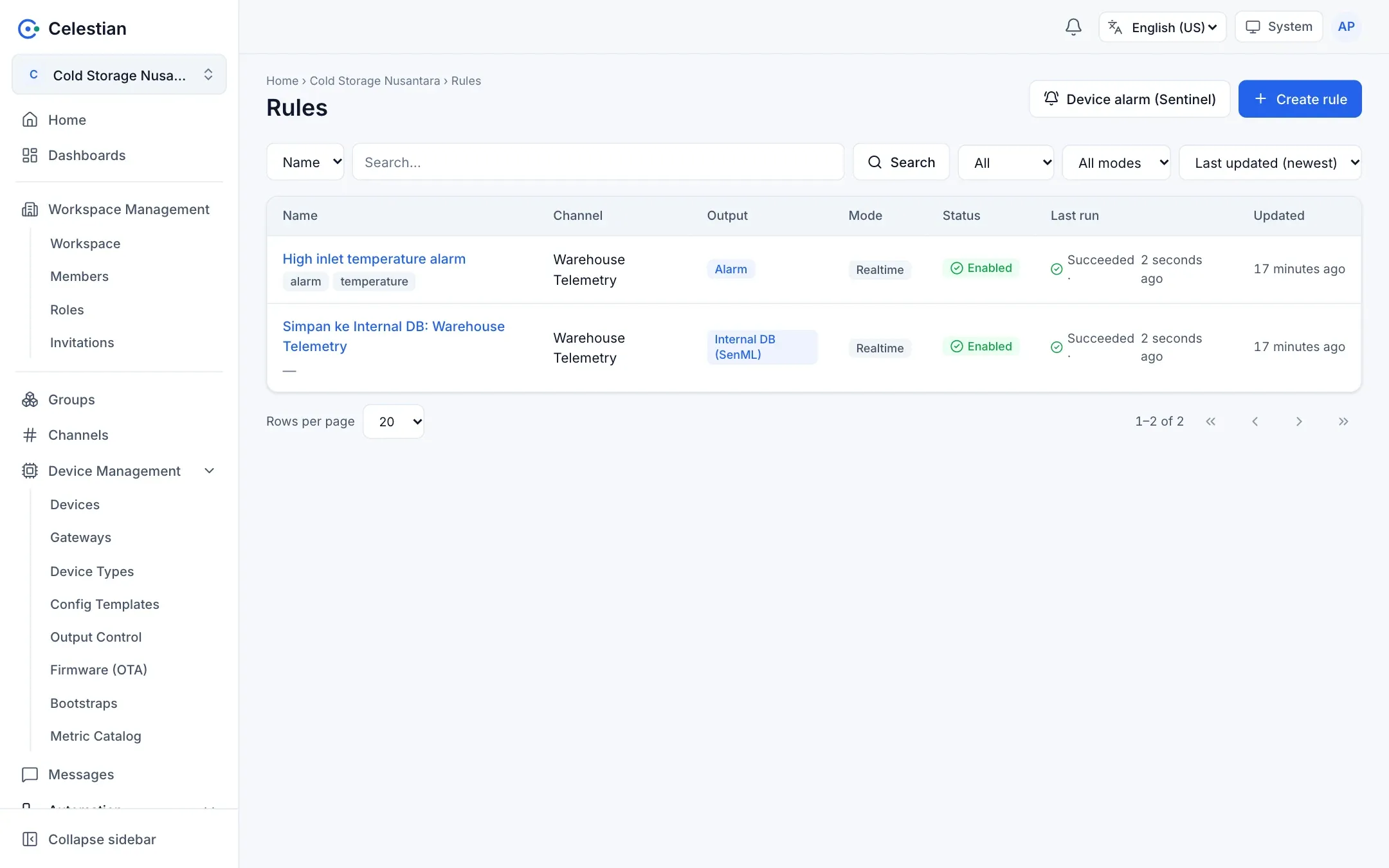
The rule list
Section titled “The rule list”Columns: Name, Tags, Status (Enabled or Disabled), Mode (Realtime or Scheduled), the creation and modification times, and the last run result. Search, a status filter (all statuses by default) and a mode filter, Create rule, and a per-row menu (enable/disable, duplicate, delete, view executions) are available.
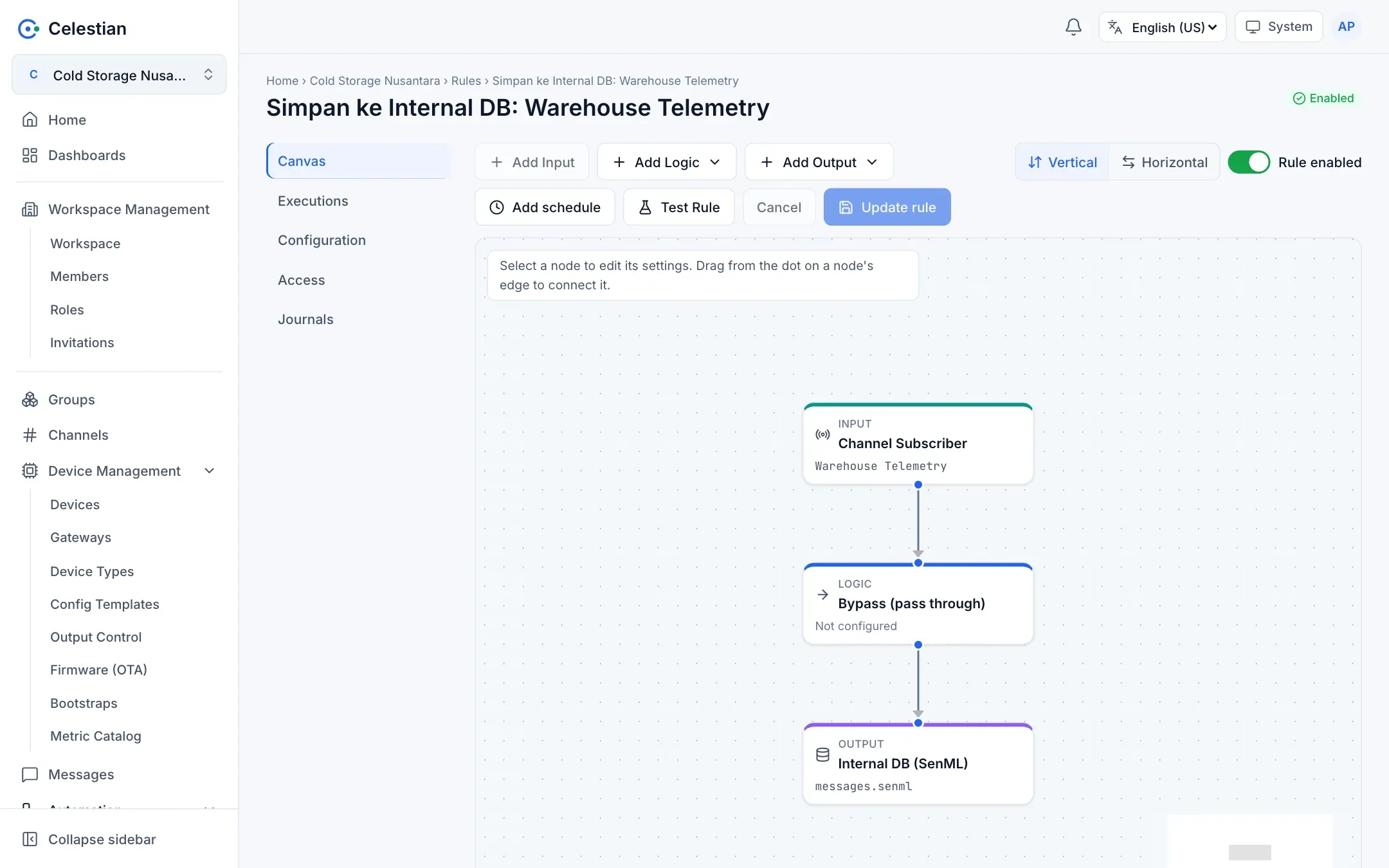
Concepts
Section titled “Concepts”| Part | Role |
|---|---|
| Input | Exactly one Channel Subscriber: a channel and a subtopic (wildcards + for one level and # for many levels are supported; empty = all subtopics). |
| Logic | One or more nodes that decide whether and what to forward: Bypass, Comparison, Lua, Go, Custom Node, SenFlat v2 splitter. |
| Output | One or more destinations: Internal DB, Channel Publisher, Alarm, Device alarm, E-Mail, Telegram, PostgreSQL, Webhook. |
The full reference for each node: Rule node reference.
Graph rules
Section titled “Graph rules”- The graph is a tree: exactly 1 Input, at least 1 Logic, and at least 1 Output (at most 40 nodes and 20 outputs).
- Connections are only Input → Logic, Logic → Logic, and Logic → Output. Every node other than the Input has one parent, so there are no cycles or merges.
- Every node must be reachable from the Input, and every Logic must have a child.
- Chained logic receives its parent’s result as
message.payload. - An output only runs when its parent logic produces a value that lets the message through (truthy).
The canvas editor
Section titled “The canvas editor”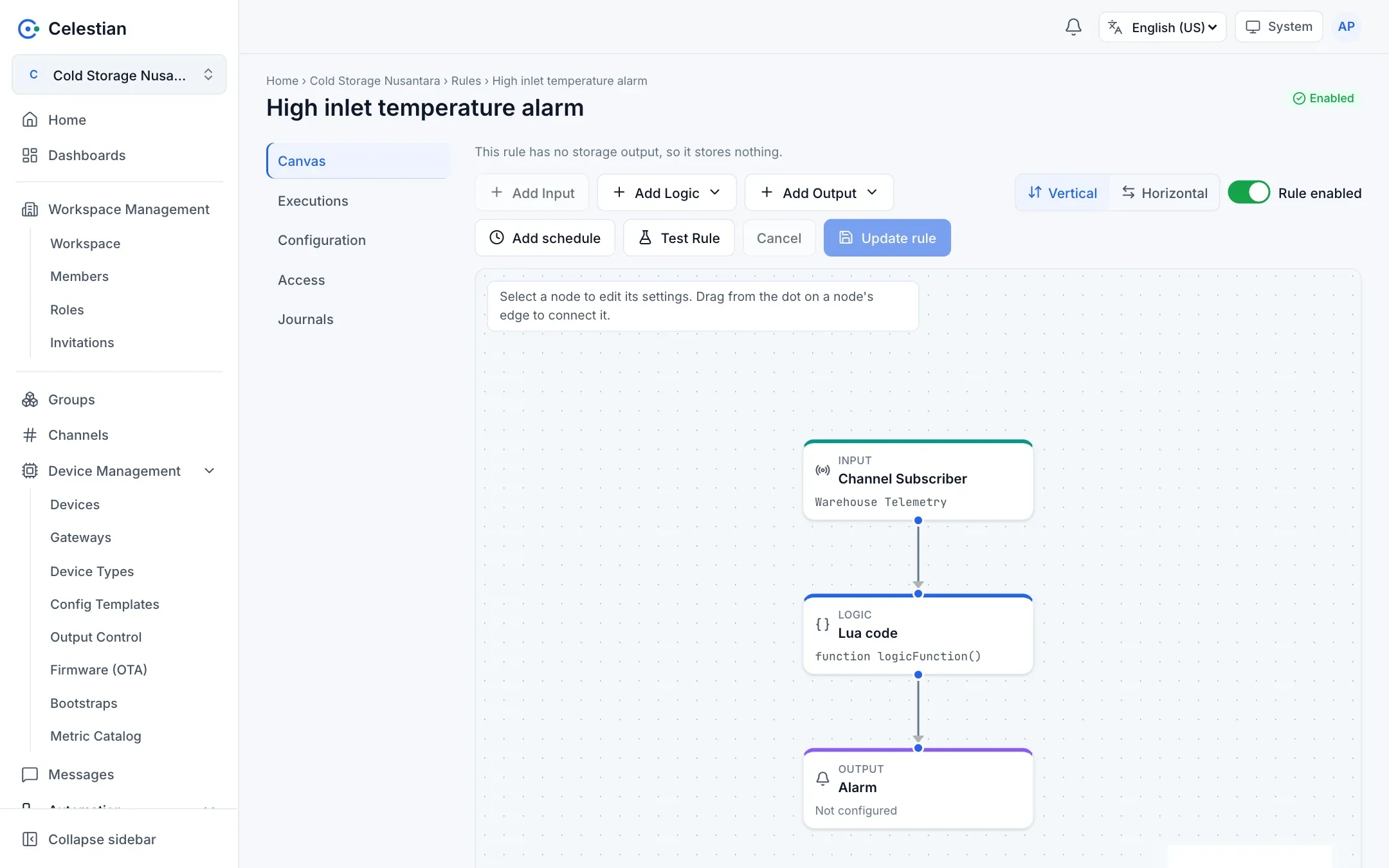
The toolbar: Add Input, Add Logic, Add Output, Add schedule, the Rule enabled switch, Save rule (or Update rule on an existing rule), Cancel, and Test Rule. You can also choose a Vertical or Horizontal layout, zoom, fit the view, and lock the canvas. A new node is connected automatically to the selected node. Click a node to open its configuration panel. The Expand button on a code editor opens a large editor in a dialog (changes only take effect after Apply; there is no auto-save).
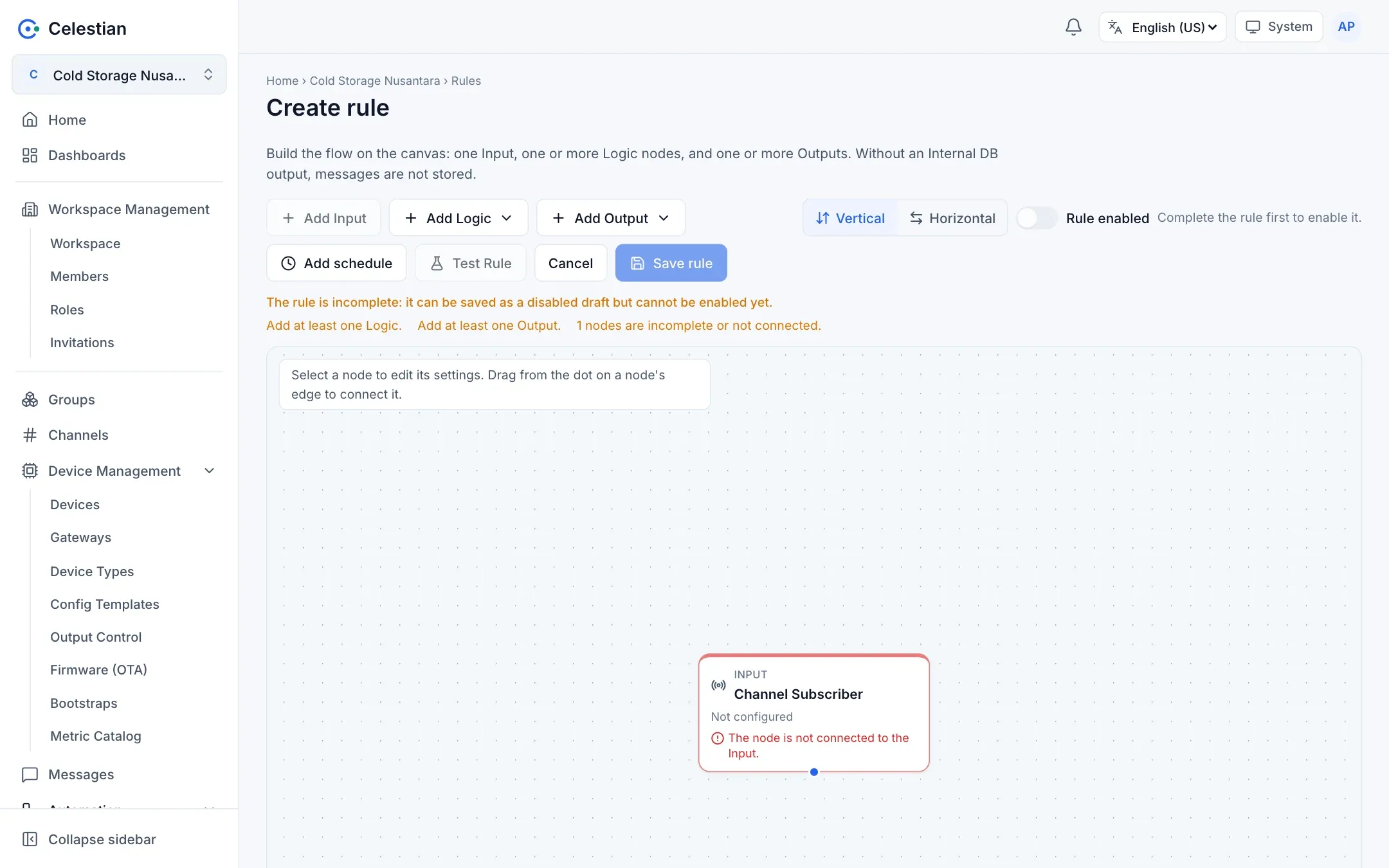
New rules and drafts
Section titled “New rules and drafts”- A new rule is created disabled.
- An incomplete rule may be saved as a draft while it is disabled, but it cannot be enabled. The Rule enabled switch stays locked while the graph is incomplete, and errors are shown per node.
- An enabled rule that is edited until it is incomplete is saved in the disabled state.
A rule only processes new messages
Section titled “A rule only processes new messages”A rule processes messages the broker received since the rule was enabled. Messages from before are not reprocessed. Messages that arrive while the rules engine is down are still processed once it is up (as long as they are within the broker stream retention, about one hour).
Test Rule
Section titled “Test Rule”Test Rule runs the rule with a sample payload without side effects: the logic really runs, but the outputs only show a preview (the rendered and validated result). Credentials are not opened. The rule.write permission is required.
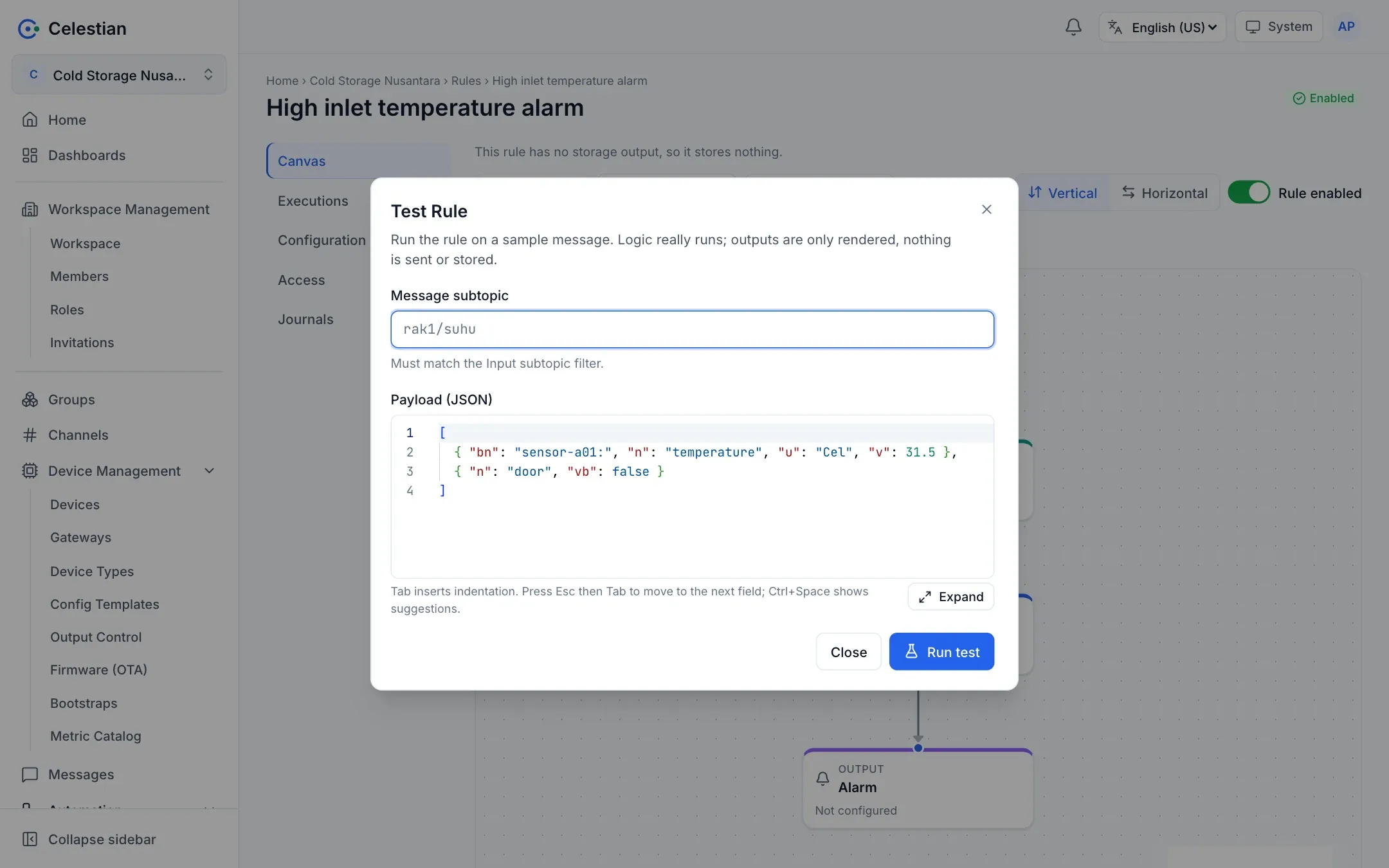
A PostgreSQL output has a Test connection button that checks the connection, table, columns, and INSERT privilege inside a read-only transaction, writing nothing.
Executions
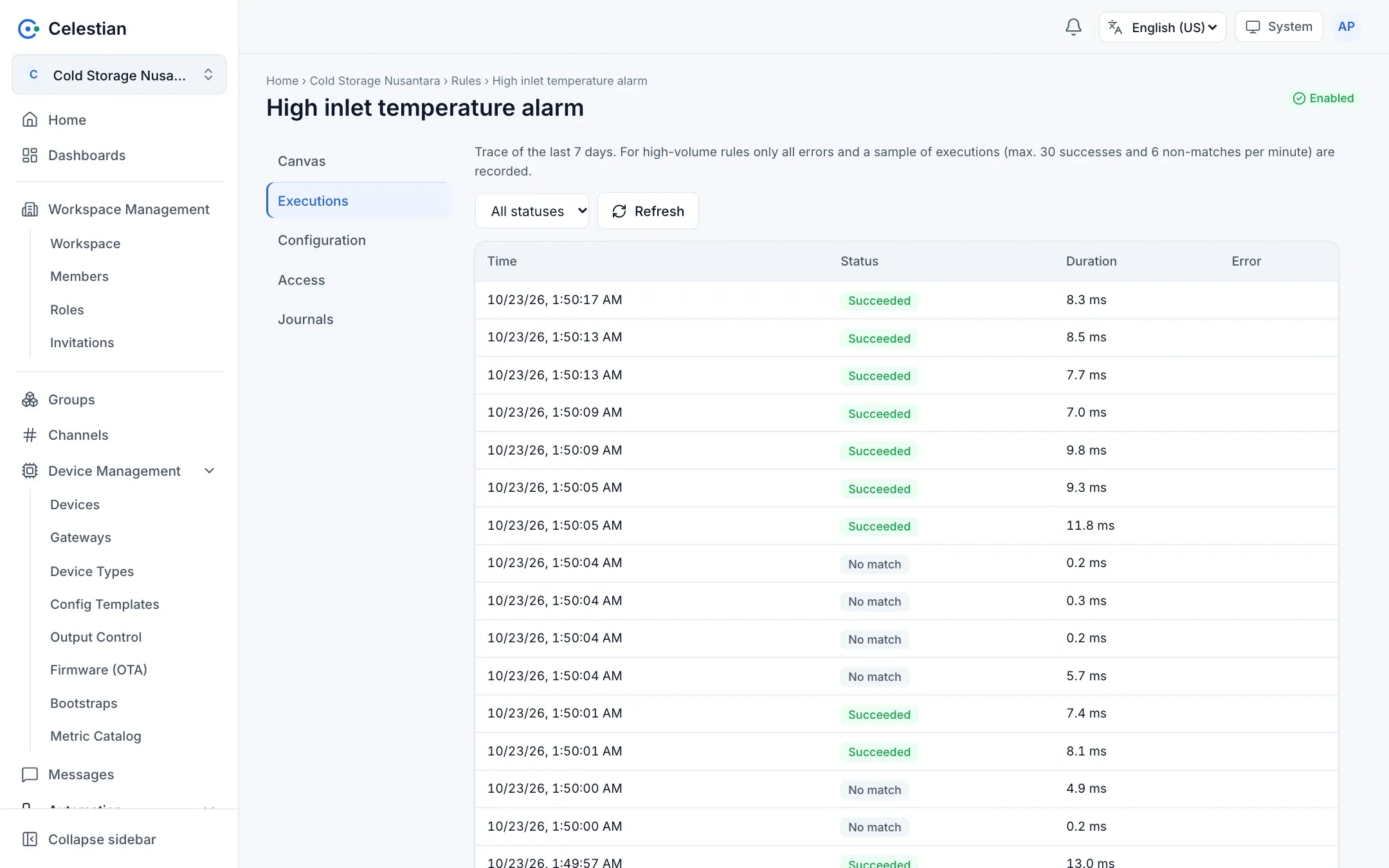
Section titled “Executions”The Executions tab shows the execution trace of the last 7 days: time, status (ok, error, no match), input, logic result, the status of each output, duration, and error. To keep the size down, the engine records all errors and samples of successful executions per rule per minute. Use this tab when messages arrive but nothing results.
Scheduled rules
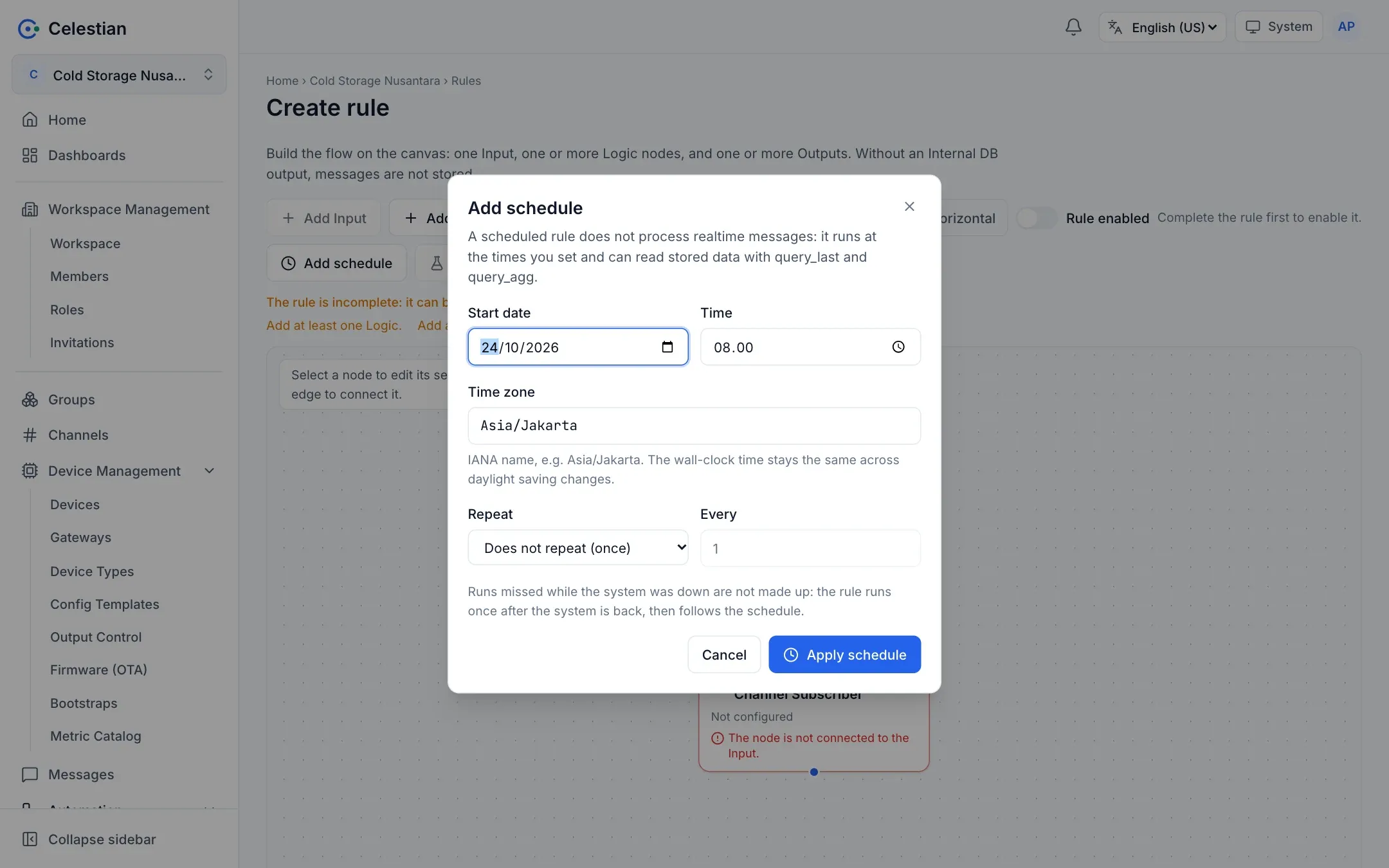
Section titled “Scheduled rules”The Add schedule button turns a rule into a scheduled rule: it no longer processes realtime messages, but runs at the times you specify.
| Field | Description |
|---|---|
| Start date and Time | Wall-clock time in the zone you choose, so “every day at 08:00” stays 08:00 local time across daylight saving changes. |
| Time zone | An IANA zone name, for example Asia/Jakarta. |
| Repeat | Does not repeat (once), or every minute, hour, day, week, or month. |
| Every | The multiple, for example every 2 hours. |
Choose Apply schedule to attach it to the rule, then save the rule.
For a scheduled rule:
- The Input is still a Channel Subscriber, but it only determines the source channel for historical data.
- Lua code gets the functions
query_last(name, duration)andquery_agg(name, duration, "avg|min|max|sum|count")to read data that is already stored (durations such as"90s","10m","2h","7d"). The result is{value, unit, time, count}ornil. Reads are always limited to the input channel and your permissions. - The processed message is synthetic (
protocol = schedule, payload{scheduledFor}). - Run now (the
rule.executepermission) asks for the rule to run within a few seconds; a repeating schedule is unchanged.
Execution limits
Section titled “Execution limits”- Logic code: an execution time of 500 ms per message.
- Output credentials (PostgreSQL passwords, Telegram tokens, webhook header values) are encrypted on the server and never returned; when editing, leaving a field empty keeps the old value.
- Network outputs (PostgreSQL, Webhook, Telegram) refuse private or local addresses unless the server administrator allows it (
RULES_ALLOW_PRIVATE_TARGETS). - A rule that writes to a channel through Channel Publisher is limited in chain depth so it cannot loop forever (messages with hops ≥ 4 are dropped).
Permissions
Section titled “Permissions”rule.read, rule.write, rule.delete, and rule.execute, plus the alarm actions (alarm_*) on a rule. Creating a rule requires permission to read its input channel.