
Members and roles
Members
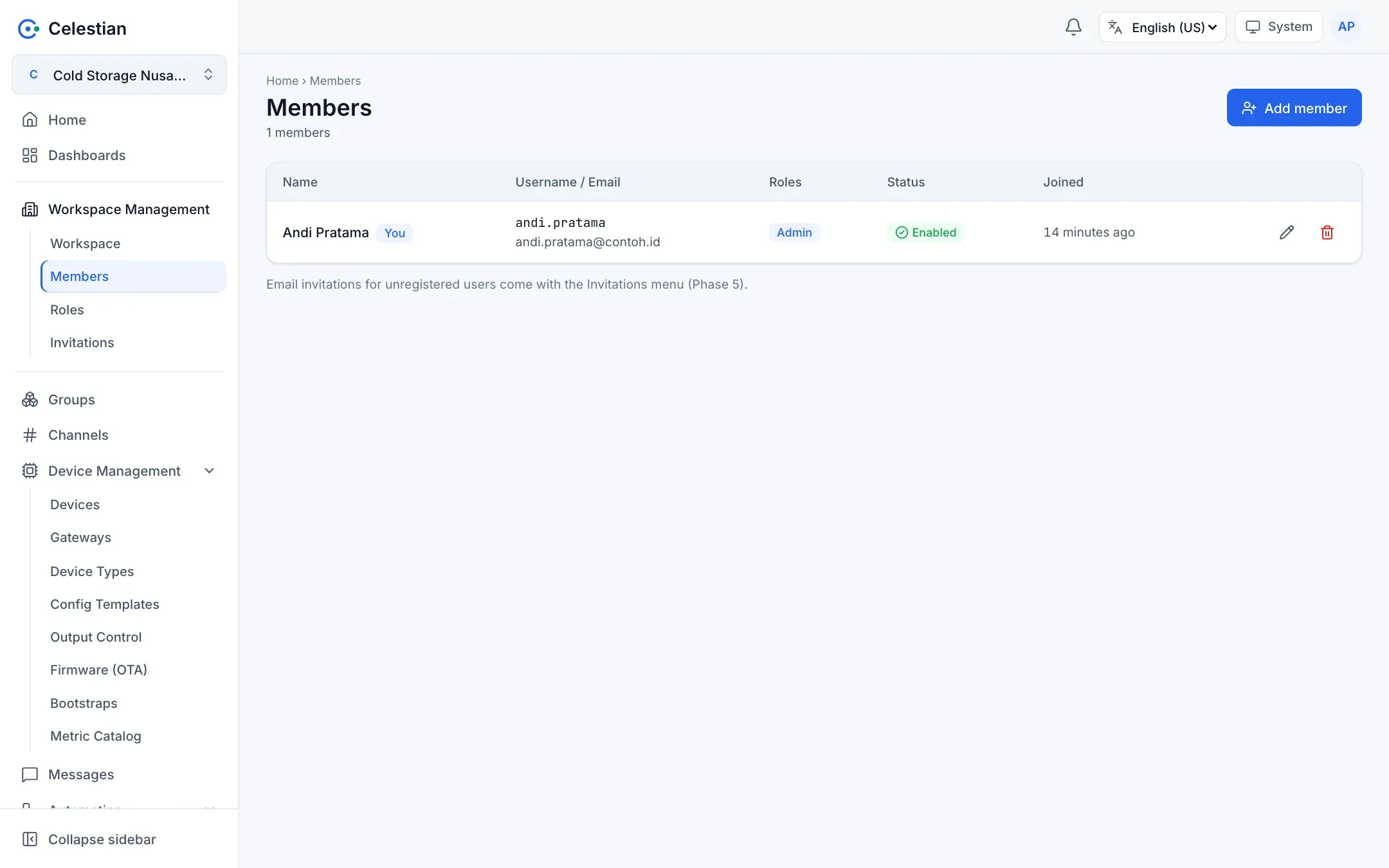
Section titled “Members”The menu Workspace Management → Members lists all members: name, username and e-mail, role, status, and join date. Search and a role filter are available.
| Action | Description |
|---|---|
| Add member | Find a user who is already registered by their exact e-mail or username, then pick one or more roles. For people without an account, use Invitations. |
| Edit roles | Change a member’s roles. |
| Remove | Revoke all of the member’s access to the workspace. The last Admin cannot be removed. |
| Unlock login | Clears the temporary block caused by too many failed sign-in attempts. |
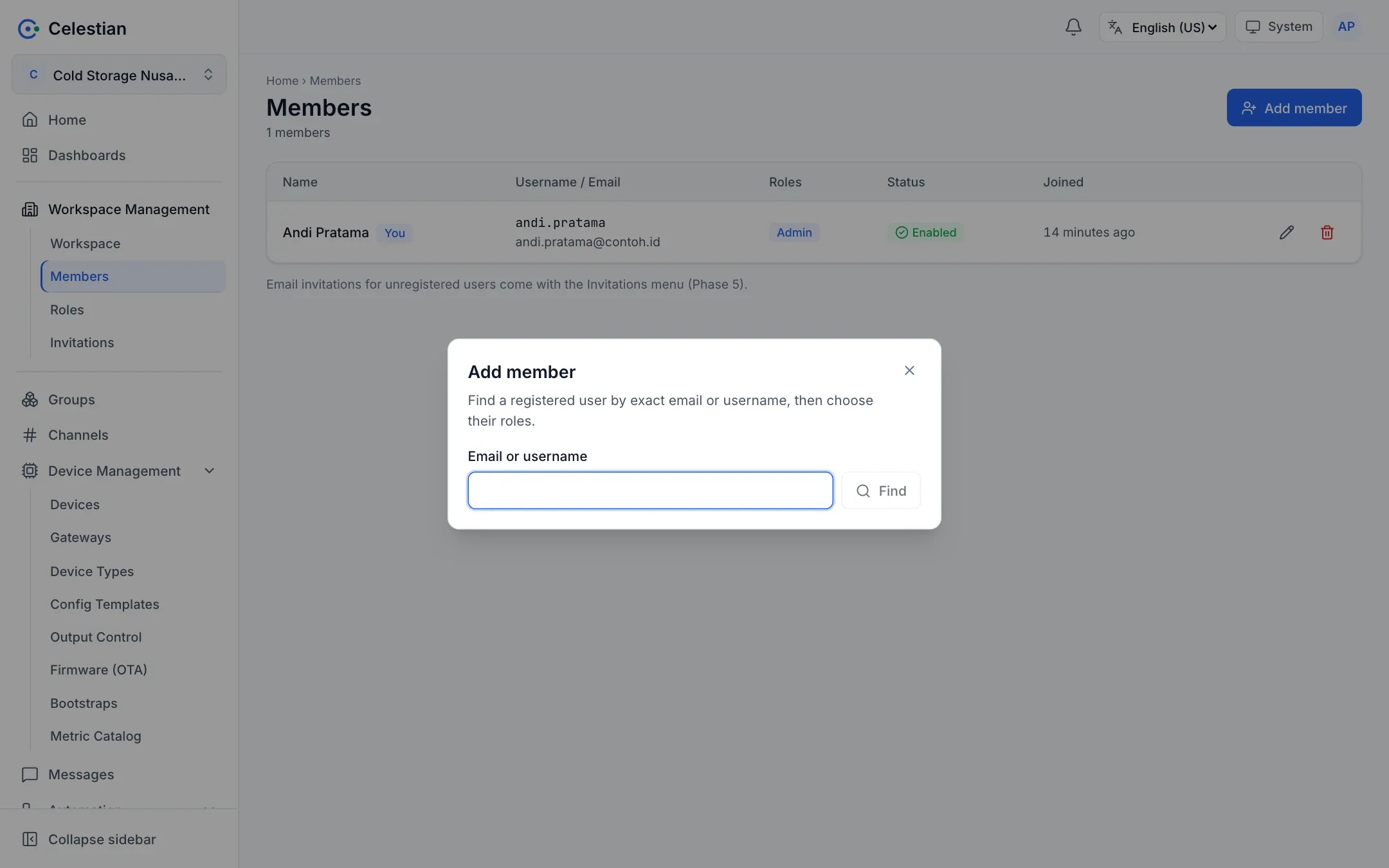
The menu Workspace Management → Roles. A role is a collection of permission blocks.
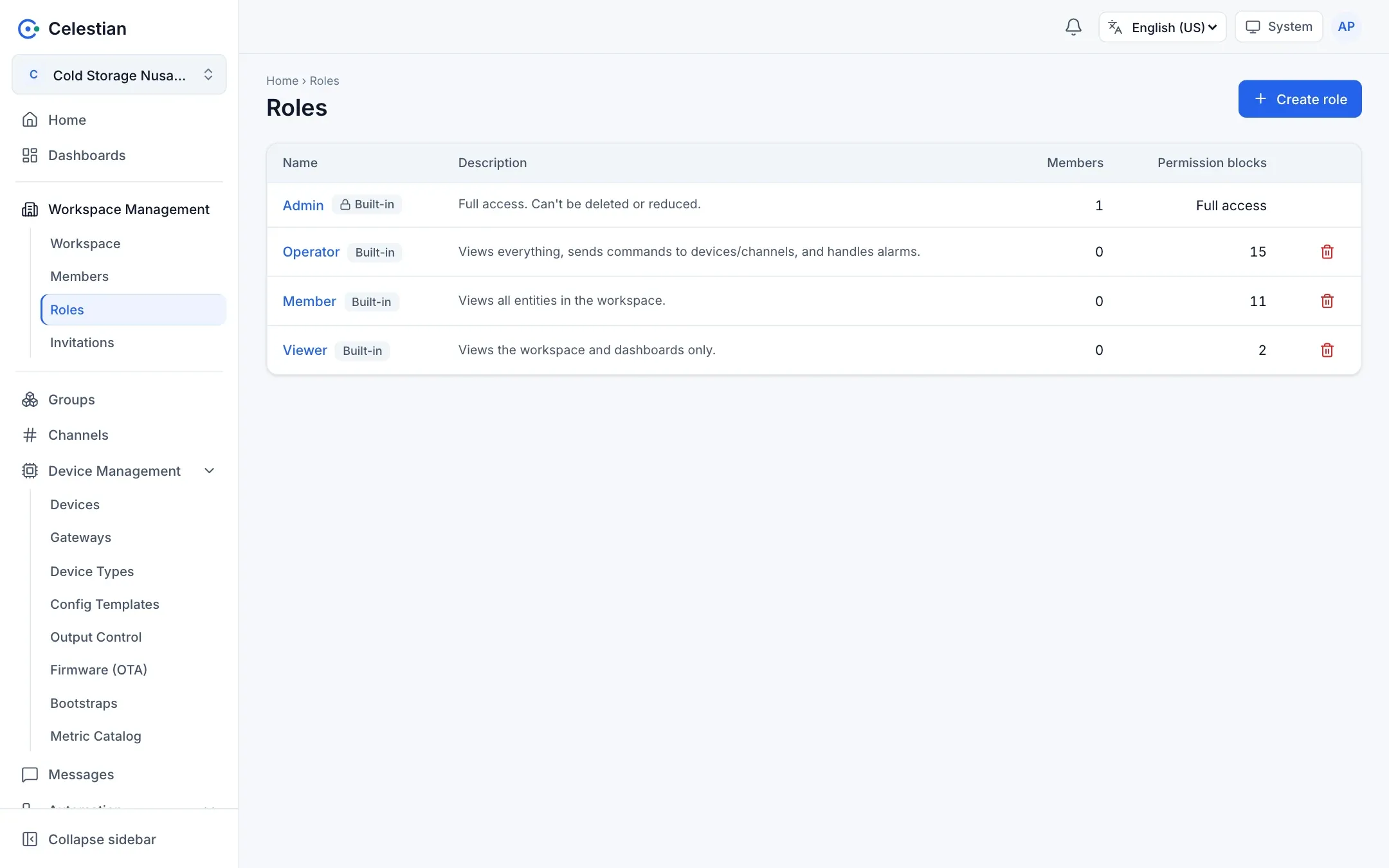
Built-in roles
Section titled “Built-in roles”| Role | Rights |
|---|---|
| Admin | Every action. Automatically given to the workspace creator. Cannot be deleted or reduced. |
| Member | Read-only. |
| Operator | Read, publish, and acknowledge and resolve alarms. |
| Viewer | View only. |
Permission blocks
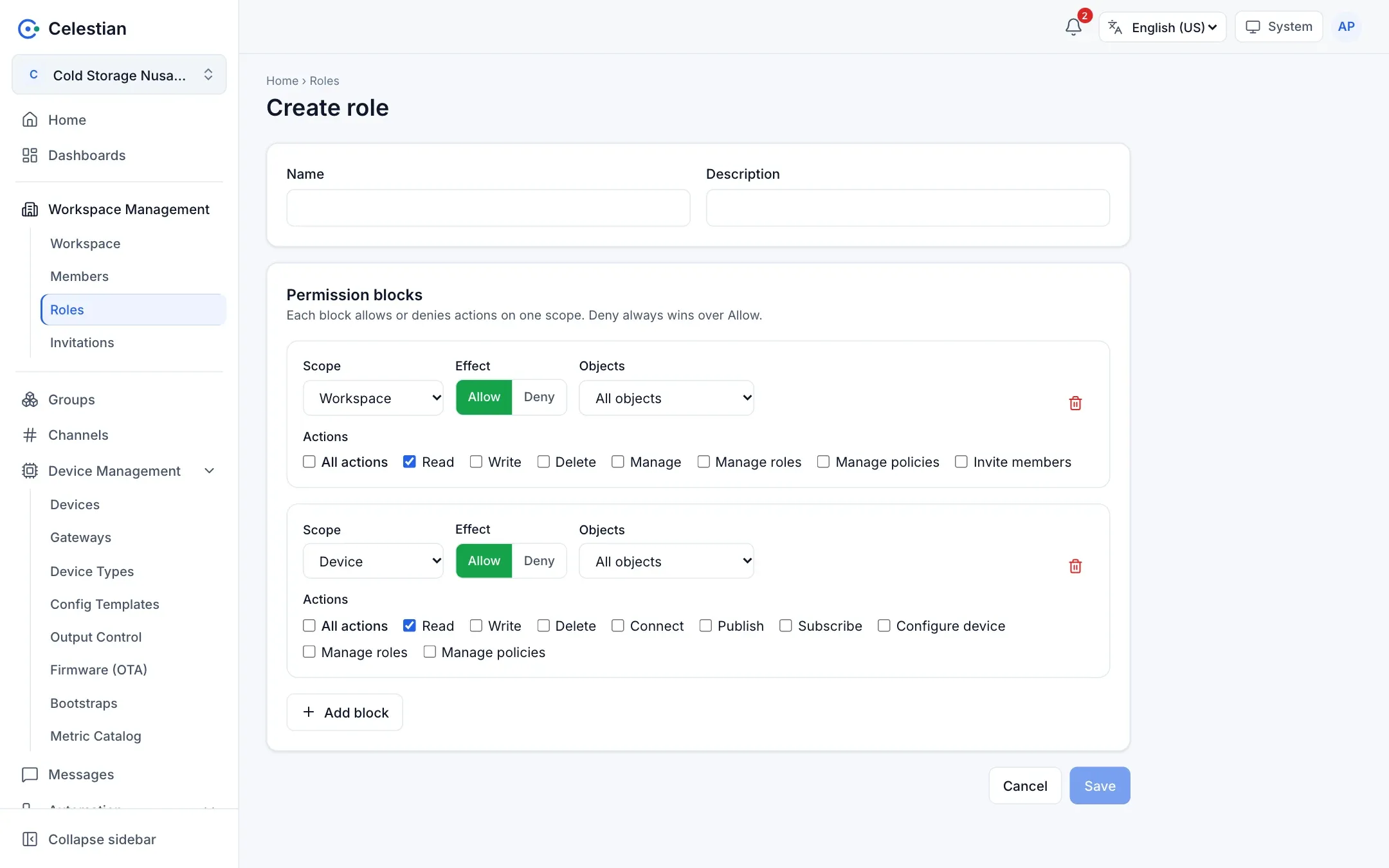
Section titled “Permission blocks”Each block defines:
- Scope:
workspace,device,channel,group,rule,report,dashboard,bootstrap,device_type, and others (see the Permission catalog). - Object: all objects in that scope, or only objects that carry a certain tag.
- Actions: a list of actions (for example
read,write,publish). - Effect: Allow or Deny.
Evaluation rules:
- Without a block that allows it, access is denied (deny by default).
- Deny always beats Allow, including an Allow from another role.
- A member must have
workspace → readto open the workspace at all.
Anti-escalation of rights
Section titled “Anti-escalation of rights”You can only create or assign roles whose Allow permissions you already hold yourself. That is why only an Admin can grant the Admin role. A workspace must also always keep at least one active Admin.
Per-object permissions: the Access section
Section titled “Per-object permissions: the Access section”Besides workspace-level roles, every device, channel, group, rule, and report (as well as device types and bootstraps) has an Access section on its detail page.
| Sub-tab | Purpose |
|---|---|
| Summary | Who has which rights over this object after roles, direct policies, group inheritance, and deny are combined. |
| Roles | Roles that reach the object (read-only; roles are changed on the Roles page). |
| Members | Direct policies: grant, change, or revoke a permission for one member on this object. |
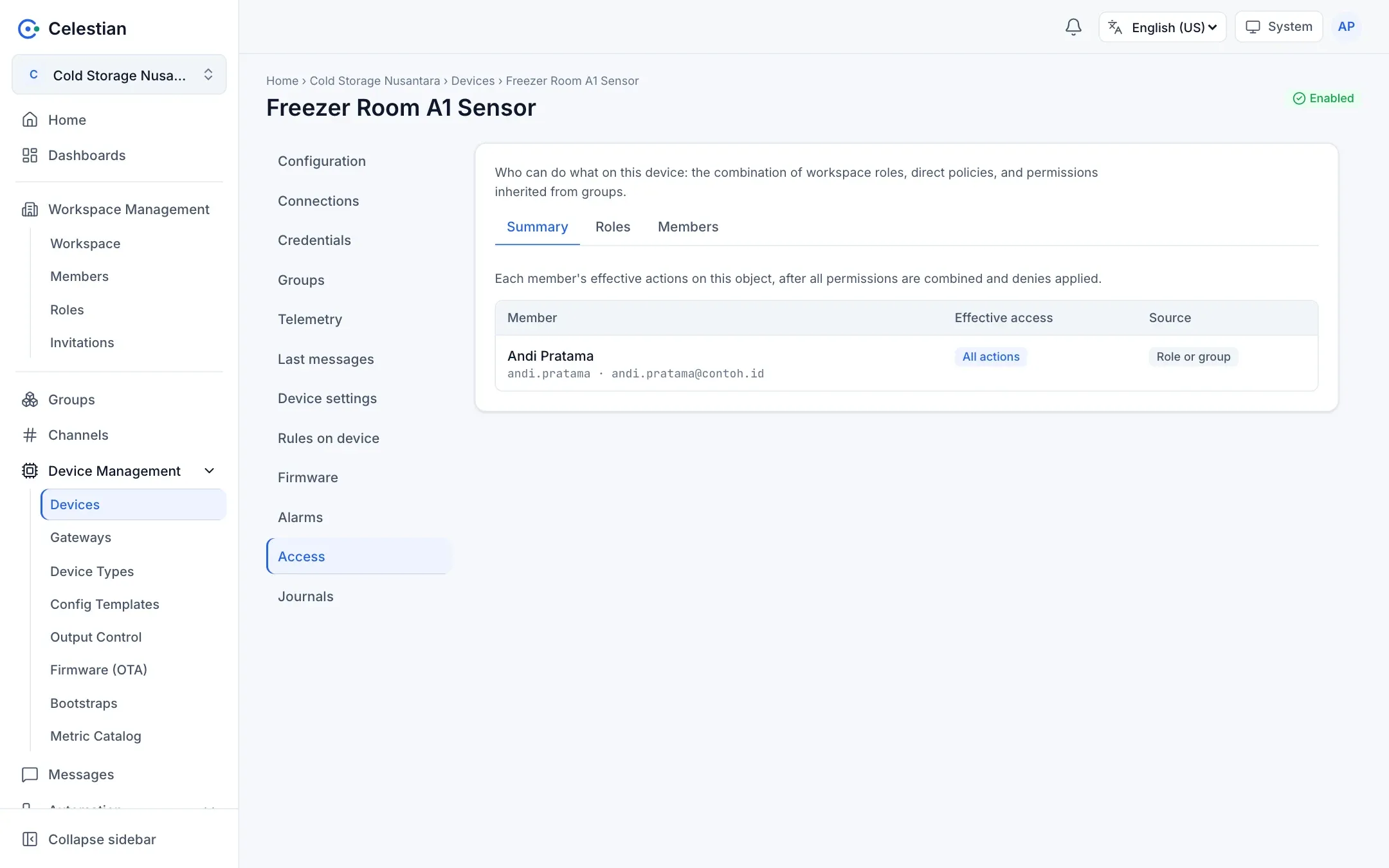
A direct policy is always bound to one object. The rules:
- An Allow policy may only contain actions you hold on that object. The wildcard
*is refused. - A Deny policy is always allowed, except toward yourself.
You need the policy.manage (or role.manage) permission on the object to open this section.
Inheritance through groups
Section titled “Inheritance through groups”A permission granted on a group applies to child groups and to every device and channel that is a member of them. This is the most practical way to grant access per building, floor, or customer.
Give the Floor 1 team read and write on the Floor 1 group. All devices and channels that are members of Floor 1 (and the groups below it) can then be managed by that team, without granting permissions device by device.
A deny on a group beats an allow from anywhere. A tag condition on a group block is matched against the tag of the requested object, not the tag of the group.