
Quick start
This exercise takes you from zero: create a workspace, register one device, send data over MQTT, store it with a rule, and show it on a dashboard. You need a Celestian account, the MQTT broker address from your administrator, and mosquitto_pub (or Python/Node.js, see the code tabs).
-
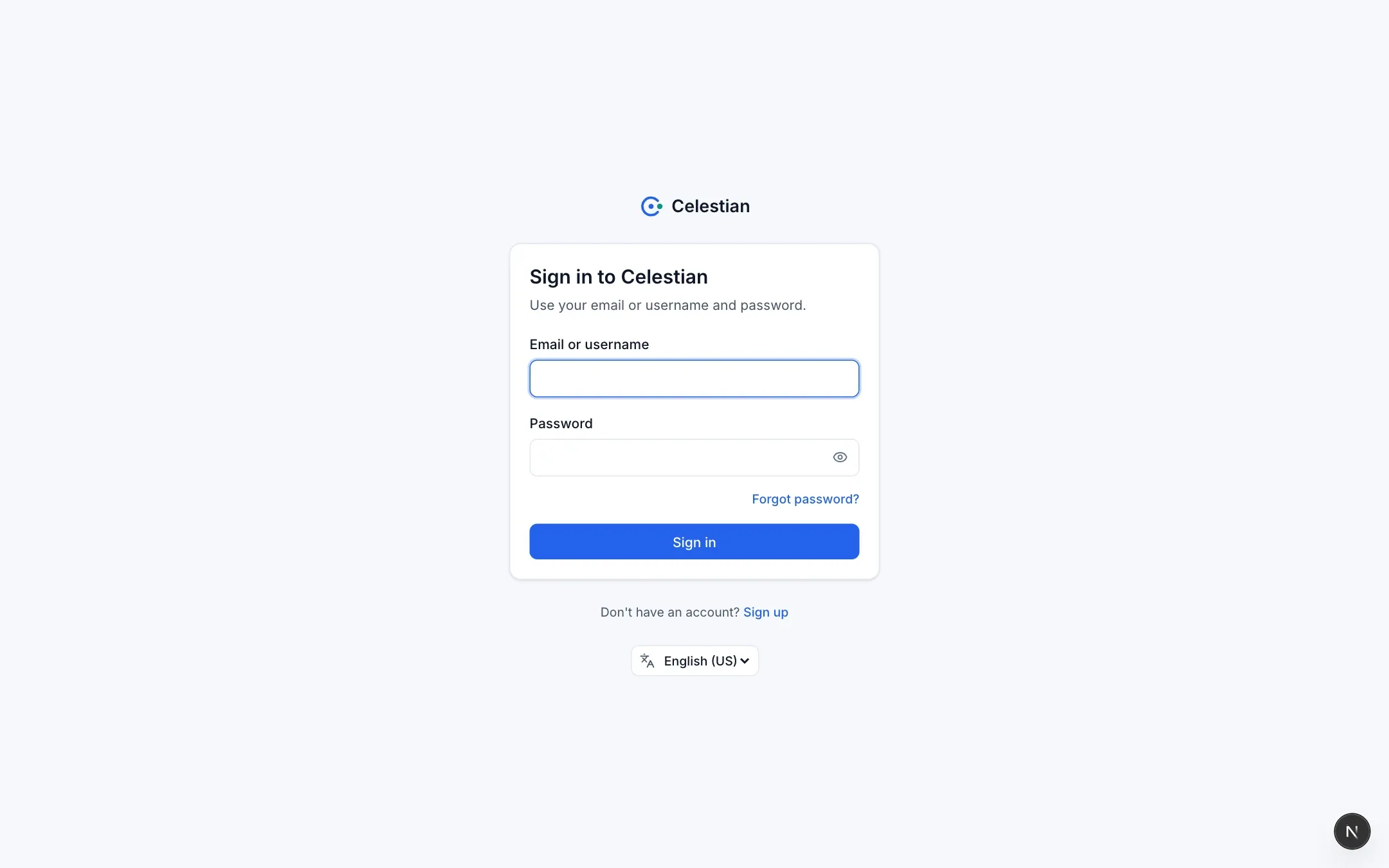
Sign in or sign up
Open the Celestian address and choose Sign up (if registration is open) or Sign in. Verify your e-mail address if asked. If registration is closed, ask your administrator for an invitation (see Invitations).
-
Create a workspace
On the Workspaces page, choose Create workspace. Fill in Name (for example
Cold Storage Nusantara) and Route (for examplecold-storage). The route is used in MQTT topics and cannot be changed later.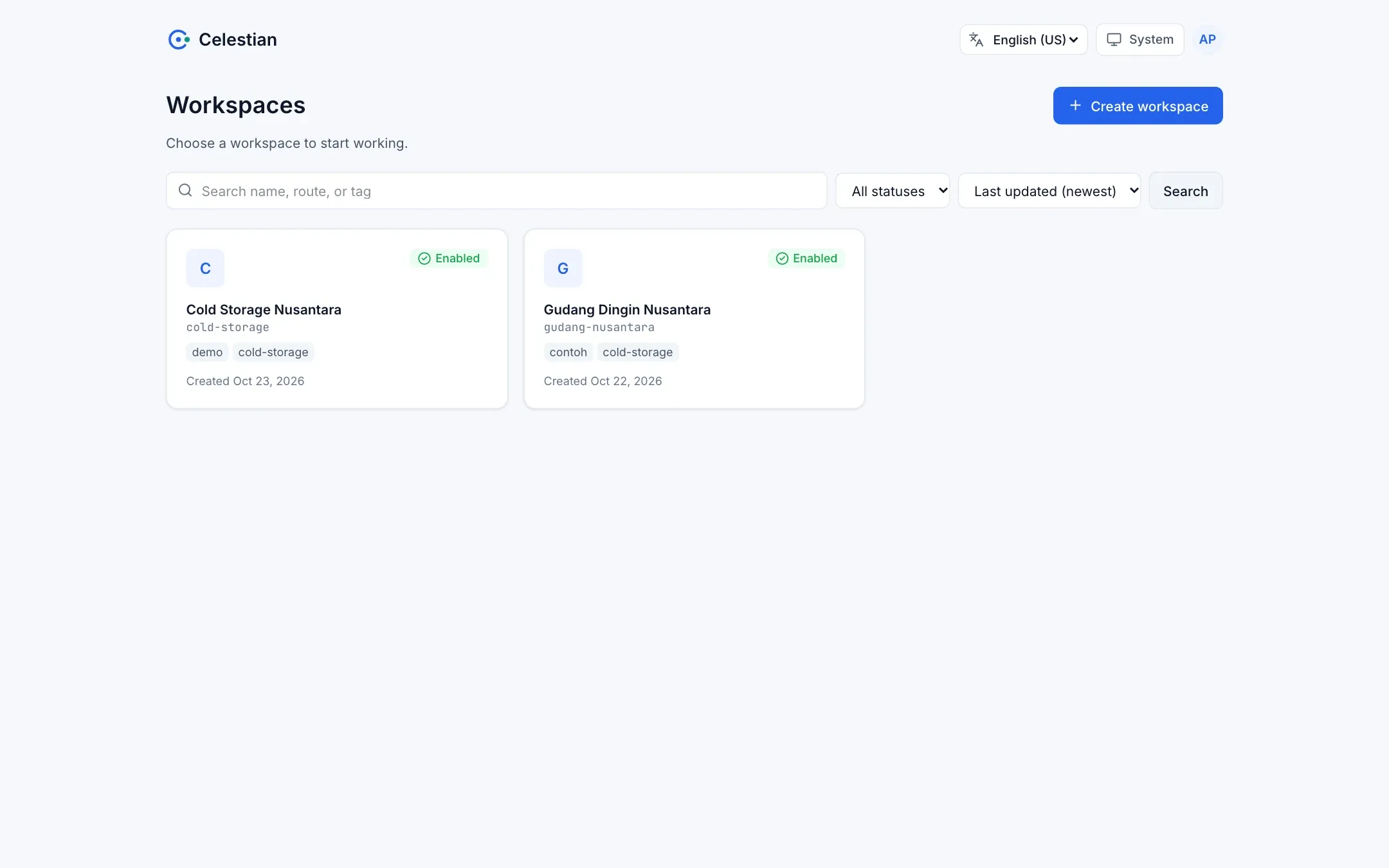
-
Create a channel
Menu Channels → Create channel. Enter the name
Warehouse Telemetryand the routewarehouse-telemetry.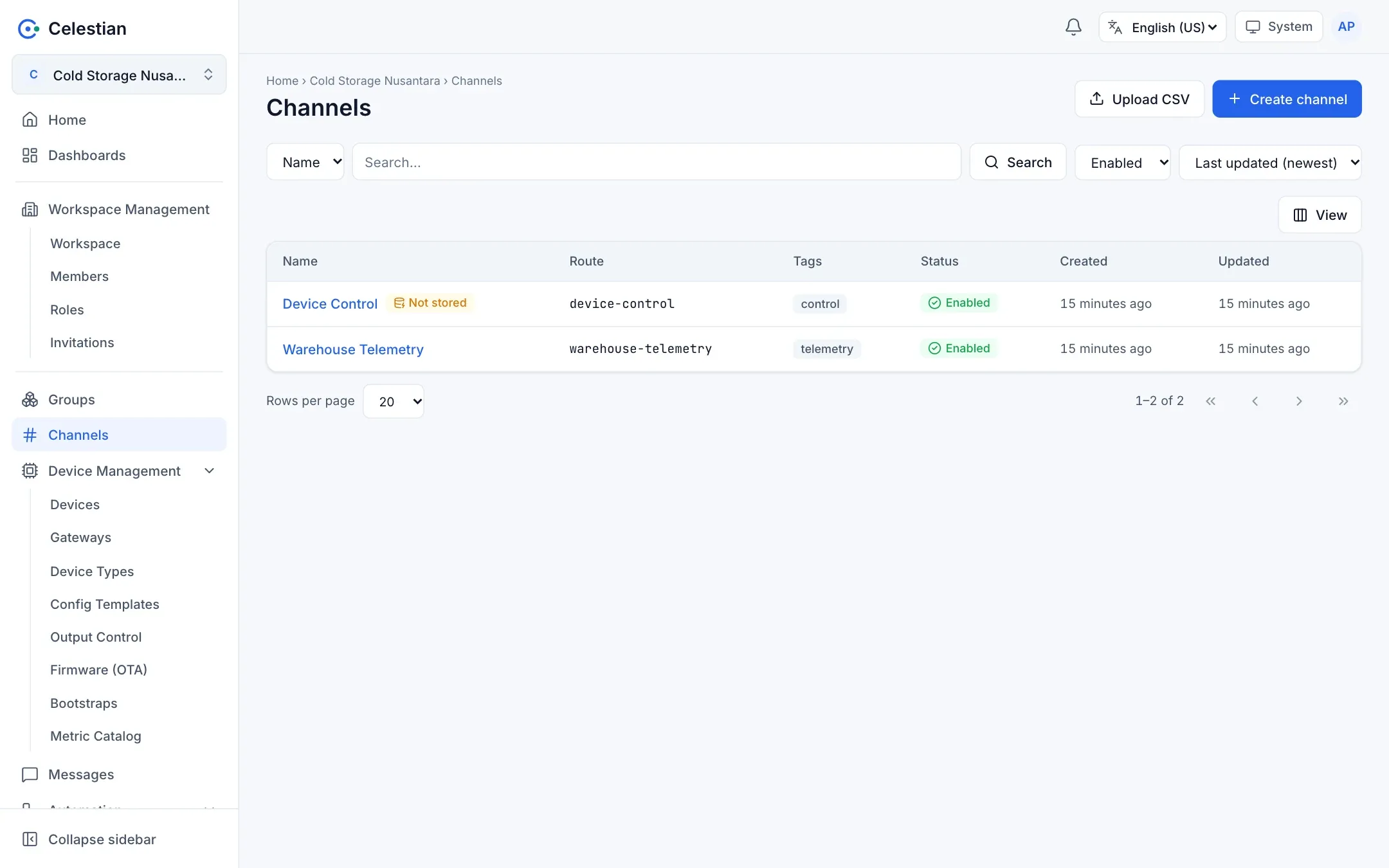
-
Create a device and save its key
Menu Devices → Create device. Enter the name
Freezer Room A1 Sensorand the SerialSN-A1. After saving, Celestian shows the device key only once. Copy and store it. The device ID (a UUID) is visible on the detail page. -
Connect the device to the channel
Open the channel detail, the Connections section, choose Connect, pick the device, and tick the Publish type. Without a publish connection the broker drops a device that tries to send.
-
Add a storage rule
In the channel detail (the Settings section), the Storage card shows the Not stored flag. Choose the Store in Internal DB (SenML) button. The rule it creates is Channel Subscriber → Bypass → Internal DB (SenML).
-
Send data from the device
Terminal window DEV=<device-id>mosquitto_pub -h <broker-address> -p 1883 -V mqttv311 -q 1 \-i "$DEV" -u "$DEV" -P '<device-key>' \-t 'm/cold-storage/c/warehouse-telemetry/room-a1' \-m '[{"n":"temp_inlet","u":"Cel","v":22.4},{"n":"humidity","u":"%RH","v":48.3},{"n":"door_open","vb":false}]'import jsonimport paho.mqtt.client as mqttDEV, KEY = "<device-id>", "<device-key>"c = mqtt.Client(mqtt.CallbackAPIVersion.VERSION2, client_id=DEV)c.username_pw_set(DEV, KEY)c.connect("<broker-address>", 1883)c.loop_start()payload = json.dumps([{"n": "temp_inlet", "u": "Cel", "v": 22.4}])c.publish("m/cold-storage/c/warehouse-telemetry/room-a1", payload, qos=1).wait_for_publish()c.loop_stop()import mqtt from "mqtt"; // npm i mqttconst c = mqtt.connect("mqtt://<broker-address>:1883", {clientId: "<device-id>", username: "<device-id>", password: "<device-key>",});c.on("connect", () =>c.publish("m/cold-storage/c/warehouse-telemetry/room-a1",JSON.stringify([{ n: "temp_inlet", u: "Cel", v: 22.4 }])));The Credentials tab on the device page generates the same examples with the ID and topic already filled in.
-
See the messages in Messages
Open Messages, pick the channel, and turn on Live to watch messages arrive instantly. Stored messages appear in the table.
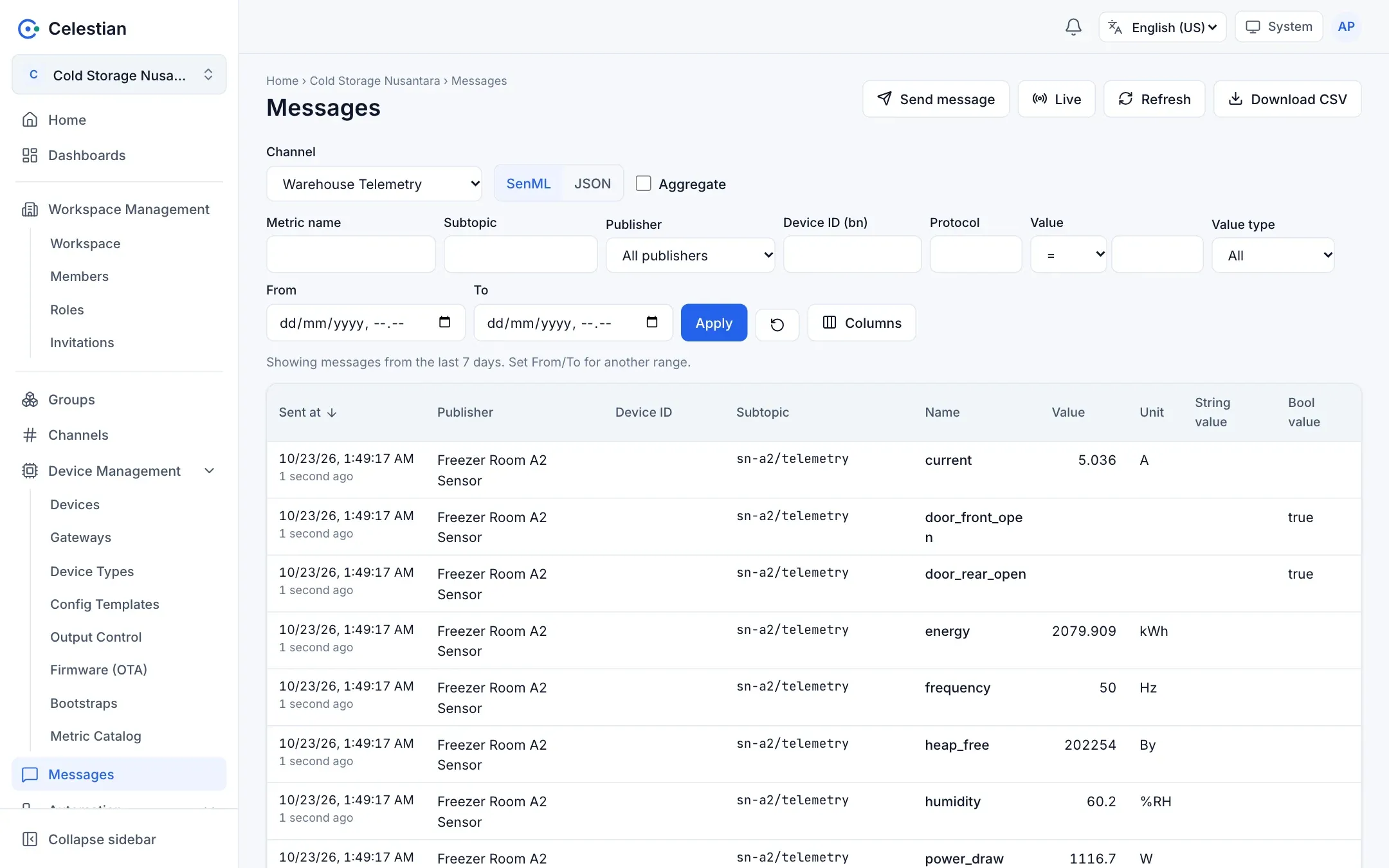
Stored messages in Messages. -
Create a dashboard
Menu Dashboards → Create dashboard, then Edit mode → Add widget (for example Line Chart). Pick the channel, the value name
temp_inlet, and a time window.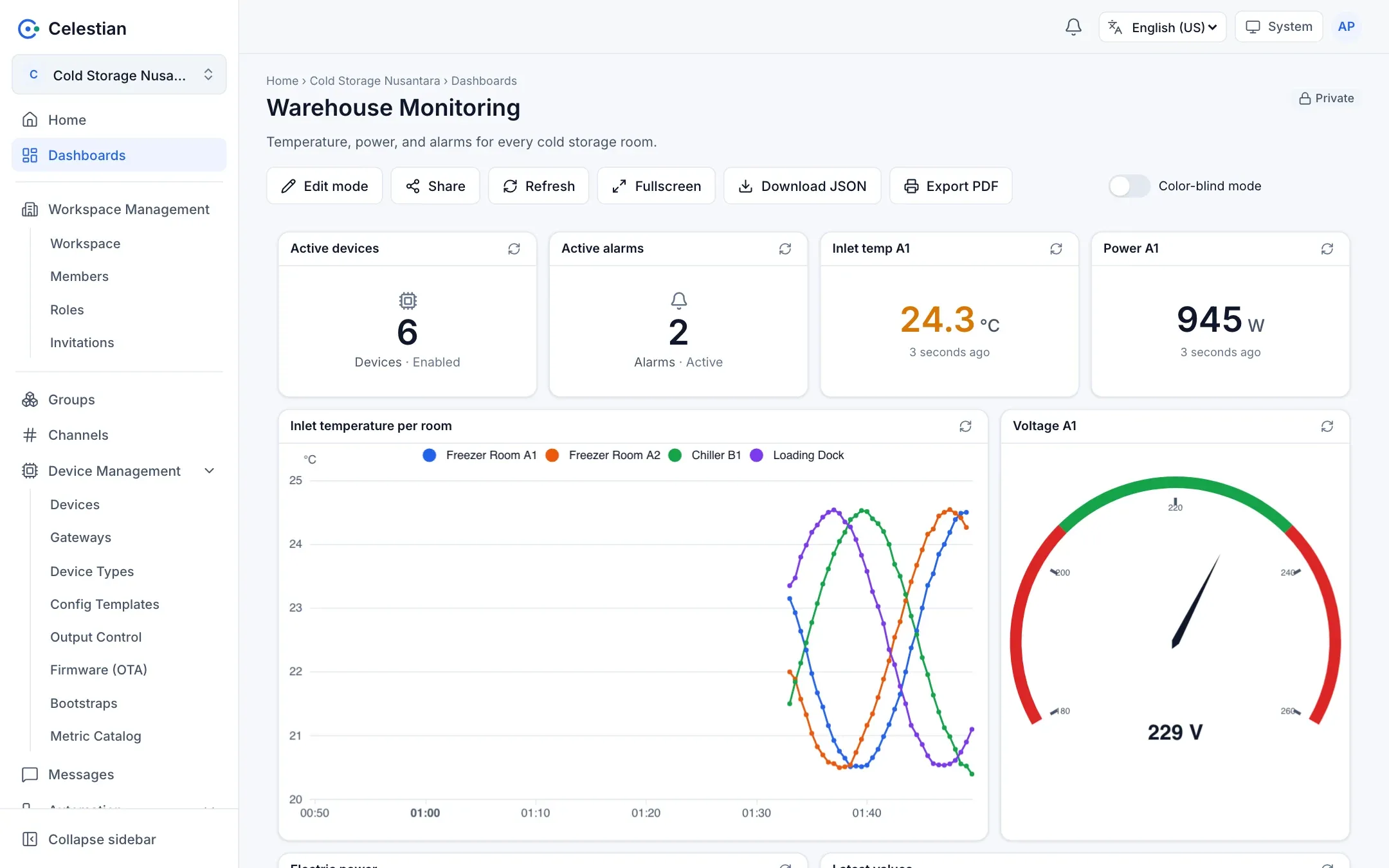
The end result: a monitoring dashboard.
Next steps
Section titled “Next steps”- Understand the payload formats so your data is more compact and structured.
- Add an alarm for when the temperature crosses a limit.
- Set up members and roles so your colleagues can join.
- If you use a gateway, read Gateways and child sensors.